Smartwatch
Exploring the world of smartwatches, covering their multi-functional capabilities, designs, and technology advancements.
Easy Smartwatch Time Setup Guide | How-To
An astonishing 20% of smartwatch users admit they’ve struggled with setting the time on their devices at least once. But fret not, as mastering the how-to’s of smartwatch time setup can be more straightforward than you might think. Whether it’s for luxury models with full-touch terminus for easy clock setting adjustments or the more practical designs that link seamlessly to your smartphone, setting the correct time on your smartwatch is paramount.
I’ve explored a multitude of brands and models, such as the practical NoiseFit Halo, to bring you the most user-friendly ways to ensure your smartwatch clock setting is up to scratch. Plus, smartwatch time setup often offers a choice between the 12-hour and 24-hour systems, letting you tailor the time display to suit your personal preference.

Ensuring your smartwatch displays the correct time is not just about punctuality; it’s essential for the optimal utilisation of this modern marvel. Follow along as I detail the steps to make the process of how to set the time on a smartwatch as smooth as navigating through your favourite smartphone apps.
Key Takeaways
- Understanding the correct smartwatch time setup is a game-changer for leveraging its features.
- Time misalignments can be effortlessly fixed with or without a mobile application.
- Choosing your time format is just one touch away from today’s intuitive smartwatch interfaces.
- Advances in BT technology streamline the synchronisation process with mobile devices.
- Ensuring time accuracy is critical in taking advantage of intelligent calendar notifications and app messages.
The Importance of Accurate Time on Your Smartwatch
When I consider my smartwatch, the paramount feature that stands out is its ability to maintain precise timing. It’s not merely about ticking seconds; it’s about syncing my entire routine. My smartwatch isn’t just a complication on my wrist; it’s my personal assistant, fitness coach, and silent secretary all at once. To fulfil these roles effectively, time adjustment on a smartwatch is absolutely critical. Let me explain why.
Understanding the Significance of Precise Timing
Accuracy in setting time on a smartwatch is about more than avoiding being late. It’s the cornerstone of the device’s overarching functionality. My smartwatch, akin to many high-tech models out there, offers a multitude of features, from monitoring heart rate to dictating textual content. These functionalities are heavily reliant on the correct time; without it, my schedule could fall into disarray.
Let’s imagine a scenario. My smartwatch wrongly indicates that it’s half past two when in fact, it’s quarter past three. Not only could I miss an important meeting, but my health metrics are also logged incorrectly, and the reminders set for medication or hydration become pointless. The domino effect on my day-to-day efficiency could be significant.
Impact of Correct Time on Smart Features and Notifications
The accurate smartwatch time configuration influences how and when I receive notifications. If the time is off by even a few minutes, messages from social apps, emails, or calendar alerts may not align with real-time events. It is indispensable that my watch is in perfect harmony with the world clocks, as I use it to coordinate with colleagues and friends across different time zones.
The efficacy of a smartwatch’s ability to control smart home devices or play media on command similarly hinges on the synchronicity of its internal clockwork. Fail to keep it accurate, and you may as well be putting the kettle on the hob when you meant to turn it off.
With the modern lifestyle being a ceaseless race against time, you want a smartwatch that melds seamlessly into the intricate tapestry of your day. Recovering time lost to incorrect settings is not only a hassle; it’s a slice of life you’ll never get back. As we stride further into a digitally governed epoch, let’s not forget the essence of timekeeping and its central role in the grand orchestration of our digital wrist companions.
Steps to Link Your Smartwatch With a Smartphone
As someone who’s passionate about the convenience of wearable technology, I find the process of linking my smartwatch with my smartphone quite fascinating. It’s the first critical step in ensuring that the smartwatch time setting is accurate and synchronised with the phone. Here, I’ll guide you through the simple yet essential steps to achieve a flawless smartwatch time setup.
Before delving into the technicalities, it’s important to note that the synchronization process is typically a one-time setup. Once completed, you shouldn’t need to figure out how to set the time on your smartwatch again as it should maintain accuracy automatically.
- Firstly, download and install the smartwatch manufacturer’s application from your smartphone’s app store. This is akin to setting the foundation for your smartwatch to communicate with your phone.
- Secondly, ensure your smartwatch is charged and powered on. A simple press or swipe should awaken your device, revealing its vibrant display.
- Finally, activate your smartphone’s BT technology and pair it with your smartwatch following on-screen instructions, which usually involves selecting your smartwatch from the list of available devices.
The table below illustrates the potential differences between a smartwatch that is correctly linked and one that isn’t:
| Status | Time Accuracy | User Experience |
|---|---|---|
| Smartwatch Linked | Highly Accurate | Seamless access to features and notifications |
| Smartwatch Not Linked | Potentially Inaccurate | Limited functionality and possible manual time setting required |
The magic truly happens once the devices are paired. An automatic synchronisation protocol aligns the time displayed on your smartwatch to match the one on your smartphone, leaving you free from the worries of manual time setup.
And there you have it—a smartwatch perfectly in tune with your smartphone, promising that your timekeeping is as intelligent as the technology wrapped around your wrist.
Adjusting Time Manually on Your Smartwatch
When convenience dictates, mastering how to set the time on a smartwatch can be pretty handy, particularly for those of us looking to foster punctuality by setting our watches a tad ahead. Here is my straightforward guide to making a manual time setting on your innovative timepiece.
First things first, activate the smartwatch display by pressing the power button. After the screen springs to life, I tend to swipe through to access the ‘Settings’ menu. Among various options, select ‘Date and Time’—this is where the magic of smartwatch time adjustment happens.
| Step | Action | Notes |
|---|---|---|
| 1 | Activate Display | Wake up the smartwatch by pressing the power button or a designated wake gesture. |
| 2 | Navigate to Settings | Swipe through to find and select the gear icon or ‘Settings’ menu. |
| 3 | Date and Time | Under settings, look for ‘Date and Time’ and give it a tap to enter. |
| 4 | Adjust Manually | Turn the digital dial or use the interface provided to set the time as per your preference. |
Gadgets like the Noise ColorFit Pro 2 have revolutionised the experience with user-centric designs that simplify these steps further. Aligning the time with your mobile device can be effortlessly achieved with a quick pairing, ensuring your watch always ticks with the correct time right after it is done syncing.
Should you travel or simply want your smartwatch set a few minutes fast, these steps are monumental in keeping you on track. Just remember, while automatic time syncing is convenient, there’s something reassuring about taking things into your own hands, and manual time setting on a smartwatch offers just that—control.
How to Set the Time on a Smartwatch: A Detailed Approach
As we delve deeper into the intricacies of modern wearable technology, mastering the simple yet vital task of setting time on a smartwatch is paramount. I’ll walk you through a detailed, hands-on guide, ensuring you have total control over your device’s timekeeping functions—an essential aspect of daily efficiency and technological synchronicity.
Turning On Your Smartwatch Display
First things first, activating your smartwatch’s display is a crucial step. This typically involves a long press on the side button or a gentle tap on the screen of your device. Some watches may require you to swipe or press a combination of buttons to awaken the screen, so it’s worth referring to your specific model’s instructions for this initial activation process.
Navigating to Settings for Time Adjustment
Once your smartwatch display glows brightly before your eyes, accessing the ‘Settings’ menu is the natural progression. Herein lies the gateway to customisation—including the all-important ‘Date and Time’ settings. A stride through this digital arena unveils manual options for a precision-led **smartwatch time adjustment**, guaranteeing the exactitude that modern life demands.
Whether you’re **setting time on a smartwatch** to keep pace with a regimented schedule or gain those precious extra minutes before your next appointment, the process within this menu is designed for elegance and ease. It’s the modern horologist’s toolkit, allowing for granular control—from **smartwatch clock setting** to choosing display formats—ensuring that time, that ceaseless companion, marches to the beat of your personal drum.
For those who delight in precision, disabling the automatic time zone feature might be your chosen path. This allows one to select time zones manually or simply to set the watch a few minutes ahead. After all, ‘ahead’ is where we aim to be, isn’t it?
It’s my hope that this walkthrough demystifies the process of modulating the temporal aspect of your smart companion. In mastering these steps, one finds autonomy over time itself—a truer sense of control in this fast-paced digital era.
Choosing Between 12-Hour and 24-Hour Time Formats
As a keen advocate for efficient time management, I find the smartwatch time setup process to be remarkably streamlined, especially when it comes to selecting time formats. My personal experience with setting time on a smartwatch has shown that the ability to toggle between different clock settings is nothing short of a convenience.
Here, I shall walk you through the benefits of both time formats and help you make an informed decision for your smartwatch clock setting requirements.
| 12-Hour Format | 24-Hour Format |
|---|---|
| Familiar and widely used | Eliminates confusion over AM/PM |
| Comes with AM/PM indicator | Preferred for international standards |
| Ideal for casual use | Used by professionals and military |
| Easy for children to understand | Reduces errors in time-telling |
To adjust this setting, I simply delve into the ‘Date and Time’ menu on my smartwatch. It’s delightfully straightforward, and I appreciate how this simple customisation enhances the personal touch of the smartwatch clock setting. Whether you’re someone who prefers the conventional 12-hour display with its AM and PM distinctions or someone who leans towards the military precision of a 24-hour format, the choice is at your fingertips.
The gadget market today offers an extensiveness that caters to all tastes, and this liberty to customise our smart devices enriches our daily interactions with technology.
For me, the decision often hinges on the context of my day; am I lounging on a casual outing or preparing for a stringent schedule? This adaptability in smartwatches resonates with the dynamic nature of our lifestyles.
Enclosed in this neat package of advanced tech, the smartwatch reigns supreme in offering tailored experiences, making it an indispensable accessory in my life. Knowing how to finetune these settings is crucial for optimising your smartwatch’s utility, so take a moment to explore the options available to you.
Exploring Automatic Time-Setting Features
As a tech enthusiast, I’ve always been fascinated by the way smartwatch time configuration has advanced over the years. In today’s fast-paced world, the convenience of automatic time-setting features on a smartwatch cannot be understated. It’s truly remarkable how these devices ensure that time adjustment on a smartwatch is no longer a chore but a seamless part of our daily lives. Let’s delve into the technologies that make this possible.
GPS-Enabled Automatic Time Adjustment
The integration of GPS technology in smartwatches has been a game-changer. Not only can I find my way when I’m out and about, but my watch also automatically adjusts to the local time based on my location. This is an absolute boon for travel lovers like myself, as it removes the hassle of manually updating the time zone whenever I board a flight to a new destination.
The Role of Network Synchronization in Time Settings
Network synchronization is another pillar of modern smartwatch functionality that operates behind the scenes to present the correct time on your wrist. Through the subtle harmony between the smartwatch and the network it is connected to, it ensures I’m on schedule for all my appointments and never miss essential alerts or reminders. The table below illustrates the key differences between these automatic time-setting features.
| Feature | Benefit | Usage Scenario |
|---|---|---|
| GPS-Enabled Time Adjustment | Automatic local time update | Travelling across time zones without manual resetting |
| Network Synchronization | Accurate time based on a connected network | Maintaining punctuality for daily schedules and notifications |
In summary, the evolution of smartwatch technology with regard to timekeeping exemplifies how our wearables have become essential to managing our daily routines efficiently. By taking advantage of GPS and network synchronization, my smartwatch remains an invaluable assistant for both my travels and my day-to-day responsibilities.
Setting Time on Wear OS Smartwatches
Adjusting the time on your Wear OS smartwatch is a breeze, ensuring that you’re able to stay on schedule with ease. If your day-to-day routine involves managing activities efficiently, knowing how to set the time on a smartwatch is fundamental. To get started with your Wear OS smartwatch time setup, simply wake the watch display with a tap or a press of a button.
Once illuminated, swipe down from the top of the screen and tap the cog icon to access the system settings. From there, finding the ‘Date & Time’ settings is your next port of call. Here’s where you have the choice – to have your smartwatch mirror the time on your connected phone automatically or to venture into setting the time manually, a necessary step if your watch and phone happen to be out of sync.
Below is a handy table breaking down the options available to you for smartwatch clock settings:
| Setting | Description | Benefit |
|---|---|---|
| Automatic date & time | Syncs with the connected mobile phone’s time. | Eliminates the effort of manual adjustments. |
| Automatic time zone | Updates are provided according to the location provided that GPS is active. | Perfect for those who travel frequently. |
| Manual setup | Allows for personalised time/date settings without syncing to a mobile device. | It is useful when desiring a time offset or when without a smartphone nearby. |
Activating the ‘Automatic date & time’ and ‘Automatic time zone’ features cleverly aligns your watch with the time on your connected smartphone. Mind you, this hinges on the accuracy of your smartphone’s own configuration. It’s much akin to having an understanding mate who’s always got your back – you’re in perfect harmony without giving it a second thought.
I find it ever so convenient that my smartwatch is an extension of my phone, one less gadget to fret about setting up. Nevertheless, I appreciate having the choice to override it manually should the need arise. The capacity to customise is one of the hallmarks of today’s tech gear, and the Wear OS ecosystem is no exception.
Whether you are conscientiously synchronising your watch for function or fashion, bearing in mind these instructions will ensure that your smartwatch’s time is a trusty companion to your daily escapades. Remember, keeping your smartwatch in a tick-tock shape is just a few taps away.
Synchronising Time With Wearable and Handheld Devices
In our ever-connected world, my smartwatch isn’t just a fitness tracker or notification hub; it’s a timepiece refined for the 21st century. Maintaining precise time across my devices is easier than ever, thanks to advancements in Bluetooth technology and the creation of companion apps. Let me walk you through how these revelations have revolutionised smartwatch time configuration.
Bluetooth Technology and Its Impact on Time Syncing
Bluetooth synchronization is at the heart of the modern smartwatch’s ability to maintain the exact time. The second I decide to pair my watch with my mobile device, a seamless digital handshake occurs, ensuring my life is coordinated down to the very second. Whether I’m using it for personal time management or syncing with global time for an international conference call, the reliability of this technology is indispensable.
Understanding the Role of Companion Apps in Time Configuration
The companion app installed on my smartphone serves as mission control for my smartwatch. It’s the place where I can effortlessly manage all aspects of watch time configuration. I find it fascinating how these apps have transformed the way I set the time on my smartwatch – all the intricacies of maintaining accurate time, whether I’m at home or jet-setting across time zones, are handled with a few taps on my phone’s screen.
In conclusion, the orchestration of wearable and handheld devices in unison has been refined into a fine art. As someone passionate about technology, I appreciate the blend of functionality and convenience, and I’m compelled to tip my hat to the developers who have made my smartwatch a cornerstone of punctual living.
Utilising Smart Gestures for Time Adjustment on Smartwatches
One of the latest innovations I’ve come to appreciate in smartwatch technology is the introduction of smartwatch gestures for a more intuitive experience. Gone are the days of fumbling through a barrage of menus to set your watch. Now, with a simple flick of the wrist or a tap on the screen, you can perform all sorts of functions, including the ever-so-important smartwatch time setting. It’s not only time-efficient but adds a futuristic vibe to our daily interactions with technology.

Take, for instance, the NoiseFit Halo model. This piece of wearable innovation has mastered the art of blending in practicality with a dash of charm. With a swish and a flick – or, more accurately, with a twist or a tap – I’m able to adjust settings seamlessly. It’s features like these that make me wonder how we ever managed without them.
But it’s not just about being cool or showy. Thoughtful gestures also make the task of how to set the time on a smartwatch far more accessible. Imagine you’re in the middle of an important meeting, and you realise your watch is showing the wrong time. Instead of excusing yourself to fiddle with buttons or screens, a discreet gesture can rectify that without causing a distraction.
Truly, smartwatches have evolved to be more than just timepieces; they’re personal assistants strapped to our wrists, becoming an extension of our dynamic daily lives. As I continue to immerse myself in this realm of high-tech wristwear, it’s clear that the combination of smartwatch gestures with savvy time adjustment capabilities is setting a new standard in the landscape of wearable gadgets.
The Versatility of Smartwatch Interfaces in Time Setup
One of the wonders of modern technology is its ability to blend functionality with personal flair – and smartwatches are no exception to this rule. Not only do these ingenious devices empower us with smartwatch clock setting options at the tap of a screen, but they also offer an unmatched smartwatch interface versatility that has become integral to our daily routines.
As someone who relishes the combination of efficiency and style, I’m constantly in awe of the customisable watch face feature. It’s more than just about the aesthetic; it’s how it revolutionises the way I interact with time.
Customisable Watch Faces and Their Influence on Time Display
The sheer diversity of watch faces available is enough to suit any taste or occasion. You might opt for a minimalistic digital display for those focused workdays or a traditional analogue face for casual events. The choices are virtually endless, and installing them is a breeze. Many renowned brands, such as Fitbit and Samsung, provide extensive libraries of designs to give your smartwatch a personal touch.
Editing Clock Settings for Personal Preference
Adjusting the details of your smartwatch goes beyond mere aesthetics. It allows you to control how you view and interact with time itself. For instance, with a few taps, I can decide whether I want my smartwatch to show military time or include a second-hand – small details that cater to my preferences.
| Feature | Description | Benefit |
|---|---|---|
| Watch Face Variety | A diverse selection of designs and information displays. | Matches the personal style and improves readability. |
| Analog/Digital Options | A choice between traditional and modern time display. | Facilitates transition for users accustomed to different formats. |
| Complications | Custom additions like weather, steps counter, and heart rate. | Enhances the functionality of the watch interface. |
| Colour Schemes | Adjustable colour settings for the watch face and its elements. | Improves visibility according to lighting conditions and personal preference. |
In the end, the ability to constantly renew my smartwatch display reflects just how dynamic these devices are. With every new look and setting, I can fine-tune not just my style but also how I interact with my time – an aspect of modern life that’s more precious than ever. The smartwatch interface versatility indeed champions individuality while never compromising on functionality.
Smart Tips for Managing Time Zones on Your Smartwatch
Travelling across borders or juggling international appointments can be hassle-free with your advanced wrist companion. Being adept at managing smartwatch time zones is a game-changer that keeps you punctual and aligned with global time standards. Let’s delve deeper into how you can make sure that your smartwatch is not just a fashion statement but a trusty sidekick for time zone adjustment wherever you are in the world.
How to Manually Update Your Smartwatch Time Zone
The freedom to control time, quite literally, rests on your wrist. If you’re like me, relying on automated settings is second nature, but there are occasions when manual adjustment becomes necessary. Here’s a step-by-step walkthrough:
- Swipe down or go to your smartwatch’s main menu and access ‘Settings’.
- Tap on ‘System’, then find and select ‘Date & Time’ options.
- Disable ‘Automatic time zone’ to unlock manual mode.
- Scan through the list of time zones and pick the one you need. That’s all!
Spot on, it’s quite straightforward. Next time you disembark from your flight, you can step into the new time zone with your smartwatch already in sync.
Compatibility Between Smartwatch and Global Time Standards
If you’re rocking a Wear OS device or any leading brand, you’ll find that adapting to global time standards is a breeze. Their inherent compatibility makes it simple to ensure your device ticks away in unison with the world clocks. Below is a quick guide on what to look out for when adjusting for international requirements:
| Feature | Benefit | How to Use |
|---|---|---|
| Time Zone Selection | Match local times accurately when you travel | Settings > System > Date & Time > Time Zone |
| World Clock Function | Keep track of multiple time zones simultaneously | Add cities or time zones to your world clock list |
| Network Time Sync | Automatically updates the time based on network availability | Ensure ‘Automatic time zone’ is enabled when not travelling |
Whether you’re winding through the streets of Paris or sealing deals in Tokyo, your smartwatch is equipped to give you a punctual edge. Remember, mastering these settings translates to seamless transitions between time zones, keeping you ahead of the curve – figuratively and literally!
Advanced Time-Keeping Features on High-End Smartwatches
The realm of high-end smartwatches has been transformed by the merger of sophisticated technology and elegant design, integrating advanced smartwatch features that cater to the dynamic needs of today’s users. What sets these devices apart is their adept utilisation of artificial intelligence in timekeeping, learning and evolving to align perfectly with our lifestyles.

As someone who values precision and personalisation, I am fascinated by the way these smartwatches adapt to individual patterns through anticipatory time settings. It’s a game-changer for people like me who are always on the go and in need of tools that aren’t just reactive but proactive in their functionality.
Role of Artificial Intelligence in Time Management
It’s astounding how artificial intelligence seamlessly integrates into the daily operations of smartwatches. AI observes my routines, from my morning workouts to business meetings, and tailors alerts and notifications accordingly. AI in timekeeping isn’t a distant concept—it’s here, simplifying my life by curating a watch experience that feels almost predictive.
Anticipatory Time Setting Based on User Behaviour
And then there’s the brilliance of anticipatory time setting. My smartwatch detects when I cross time zones during travel and automatically updates the time setting. No more fiddling around with settings—my watch knows where I am before I do, it seems. This feature personalises my experience, ensuring that my time data is always one step ahead of my needs.
| Feature | Description | Benefit |
|---|---|---|
| Automatic Time Zone Update | AI technology detects location changes to adjust time zones | No manual setting is needed when travelling |
| Behaviour Learning | Tracks user patterns for personalised timekeeping | Customised alerts and notifications |
| Proactive Adjustment | AI predicts and adjusts to schedule changes | Enhanced reliability for appointments and reminders |
As we continue to push the boundaries of what these wearable devices can do, it’s clear that the convergence of robust AI with impeccable timekeeping skills heralds a new era for the marriage of fashion and functionality. They’re not just keeping up with the times—they’re setting the pace.
Overcoming Challenges in Configuring Time on Smart Gadgets
As I delve deeper into the world of intelligent gadgets, I’ve realised that the complexity of configuring time on smart gadgets can be somewhat intimidating, particularly with their compact design and array of intricate features. Yet, I assure you that the smartwatch time setup challenges one might initially face are surmountable and often stem from unfamiliarity with the device. To assist fellow enthusiasts in mastering their gadgets, let’s unpack the process and provide some clarity.
The key is embracing the learning curve, that is, dedicating time to explore the full spectrum of settings offered on your smartwatch. I’ve found that many issues arise not out of fault in design but rather from our own hesitation to engage with the technology’s full potential. Therefore, I encourage you to be patient and approach the process systematically.
- Start with the basics: ensure your smartwatch is fully charged and powered on.
- Take the time to familiarise yourself with the menu layout and user interface – it’s the roadmap to all your time-setting needs.
- Check out the user manual; it’s there for a reason, often presenting solutions to common issues faced during setup.
It’s also crucial not to overlook the assistance you can receive from other devices. For instance, many intelligent gadgets now offer seamless synchronisation with smartphones, which can take care of time adjustments without manual input. If you encounter any snags along the way, remember that help is typically just an app download away.
At the end of the day, patience will be your strongest ally in overcoming the challenges of configuring time on intelligent gadgets. With each step taken, you’ll grow more proficient and confident in utilising your smartwatch. Keep this guide close at hand, and you’ll be mastering your device’s time management capabilities in no time at all.
Conclusion
With the journey through the intricacies of smartwatch time setup drawing to a close, I’ve found myself appreciative of the ways technological advancements have simplified the process. Learning how to set the time on a smartwatch is no longer the labyrinthine task it once was. Instead, it’s been whittled down to a series of simple steps that can be executed with minimal fuss. The smartwatch clock setting, whether for alarms, notifications, or reminders, has evolved to become an integral part of effective time management.
My exploration into the realm of smartwatches has shown that these devices, often brimming with artificial intelligence, are designed to mould to the rhythms of the user’s life. They don’t just display time; they anticipate and adjust to ensure that I remain punctual for my meetings and personal commitments. From smartwatch time adjustment to choosing preferred watch faces, the user experience is now sleeker than ever.
As I conclude, it’s evident that the essence of timekeeping has transformed with the smartwatch. Our guide’s insights have illuminated the path to unlocking the full potential of these wrist-worn wonders. No longer are they mere time-tellers but sophisticated companions that stand guard over our schedules. Each tick and tock synchronised through my smartwatch is a testament to an era where every moment is valued, and none are lost to the complexities of technological integration.
FAQ
How do I set the time on a smartwatch?
To set the time on a smartwatch, you typically need first to ensure the watch display is on. Navigate to the ‘Settings’ menu, find the ‘Date and Time’ option, and make your adjustments there. You can usually choose between setting the time manually or synchronising it automatically with a connected smartphone.
Why is it essential for my smartwatch to show the correct time?
Accurate time on your smartwatch is essential for the functioning of its features, such as alarms, reminders, calendar notifications, and other time-sensitive applications. It also ensures you receive notifications promptly and that any health or exercise tracking is timestamped correctly.
What are the steps to link my smartwatch with a smartphone?
To link your smartwatch with a smartphone, you should start by installing the smartwatch manufacturer’s companion app on your smartphone. Turn on your smartwatch and enable Bluetooth on both devices. Follow the app’s instructions to pair them. Once connected, time synchronization should occur automatically.
Can I adjust the time manually on my smartwatch?
Yes, you can adjust the time manually on most smartwatches. Access the settings and look for the ‘Date and Time’ options, where you can set the time manually. This may be useful if you want your watch to show a time that’s a few minutes fast or if you’re in an area without a reliable network connection.
How do I turn on my smartwatch display for time setting?
The method to turn on your smartwatch display varies by model, but it usually involves pressing a button on the side of the watch or tapping the screen. Refer to your smartwatch’s user manual for specific instructions for your model.
How do I navigate to the smartwatch settings to adjust the time?
Swipe through your smartwatch’s menus to access the ‘Settings’ icon, which is typically represented by a gear symbol. From there, you can access the ‘Date and Time’ settings to adjust the time as needed.
What is the difference between a 12-hour and a 24-hour time format?
The 12-hour format divides the day into two periods (AM and PM), displaying the time from 1 to 12, while the 24-hour format runs from 00 to 23 hours without requiring an AM or PM indicator. You can choose the preferred format in your smartwatch settings based on personal preference.
How does GPS technology help with automatic time setting?
GPS technology in smartwatches automatically adjusts the time based on the detected geographical location. This ensures you always have the correct local time without needing to adjust it manually when you travel.
How do I set the time on a Wear OS smartwatch?
For a Wear OS smartwatch, wake up the device, navigate to system settings, and tap ‘Date & Time’. Here, you can choose to set the date and time automatically or manually. Ensure that the ‘Automatic date & time’ and ‘Automatic time zone’ features are activated for synchronization with a connected smartphone.
What role does Bluetooth play in syncing time on smartwatches?
Bluetooth is key in syncing time between your smartwatch and smartphone. Once your devices are paired over Bluetooth, time data is shared and synchronized automatically, ensuring both devices show the same time.
Can I use gestures to adjust the time on my smartwatch?
Some smartwatches, like the NoiseFit Halo model, support gesture controls for time adjustment and other features. By performing specific gestures, you can interact with your smartwatch to change settings without the need for traditional button pressing or screen tapping.
How does the customisation of watch faces affect the time display?
Customising watch faces allows you to select how time is displayed on your watch. This includes the style, font, and additional information shown on the face, such as date and weather, ensuring the time is presented in the way that best suits your needs and preferences.
How do I manually update my smartwatch time zone?
To manually update your smartwatch time zone on devices such as Wear OS smartwatches, you must disable the ‘Automatic time zone’ feature in the settings. You can then manually select your desired time zone.
What advanced time-keeping features do high-end smartwatches have?
High-end smartwatches may offer advanced features like artificial intelligence, which learns your schedule and habits to adjust settings automatically, including time zones. They may also provide anticipatory settings, automatically configuring alarms based on your behaviour.
What challenges might I encounter when configuring time on my smartwatch?
Depending on your device’s interface and the number of features it has, initial configuration might be overwhelming. It’s essential to familiarise yourself with your smartwatch’s menu and settings to overcome these challenges and take advantage of all its capabilities.
Source Links
8 Of The Best Smartwatches for Kids with Phone Pairing Capabilities in 2024
In the quest to find the best smartwatches for kids that pair with phones, we’ve conducted thorough research and comparative analysis. The focus was on critical features that matter most to kids and parents alike, such as ease of pairing, safety features, and engaging additional functionalities. Here’s what we found:
The Best Smartwatches for Kids with Phone Pairing Capabilities

1. TickTalk 4 Smartwatch
- Key Features: GPS tracker, voice and video calls, 5MP camera, SOS call feature.
- User Experience: Offers real-time location tracking and pre-installed phone book controlled via an app. However, it might be too simple for children over 10 years.
- Age Appropriateness: Recommended for ages 5 to 12 years.
- Parental Control: Yes, including “no disturb” times during school.
- Additional Insights: The bulky design might not appeal to older children, and the screen readability in bright sunlight could be better.

2. Xplora X6Play
- Key Features: Phone and internet functionality (3G, 4G, Wifi), camera, location tracking, SOS button, water-resistant.
- User Experience: Offers a powerful chipset for efficient performance. No learning games included.
- Parental Control: Yes, with location and communication features.
- Design: Available in multiple colours, sleek design.
- Additional Insights: Ideal for kids transitioning into using digital devices, with a focus on safety and responsibility.

3. Apple Watch SE (Gen 1 & 2)
- Key Features: Phone calls, messages, fitness tracking, SOS function, location tracking, walkie-talkie functionality.
- Compatibility: It only works with iPhones; it is not compatible with Android phones.
- Parental Control: Yes, through Apple’s Family Setup and parental control features.
- Additional Insights: A more advanced option, suitable for children familiar with technology and for parents seeking extensive tracking and communication capabilities.
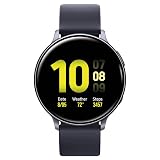
4. Samsung Galaxy Watch Active 2
- Key Features: GPS tracking, health tracking, excellent battery life, LTE version available.
- User Experience: This can be used without a smartphone and is a fitness tracker.
- Parental Control: Lacks specific parental control features.
- Additional Insights: An excellent alternative to Apple Watch SE for Android users. Suitable for older kids due to the absence of direct parental controls.

5. Amazfit Bip 3
- Key Features: Fitness tracking (heart rate, SpO2, stress monitoring), GPS, sleep quality tracking, 60+ sports modes, IP68 water resistance, 14-day battery life.
- User Experience: Supports push notifications but cannot make phone calls. Extremely budget-friendly.
- Parental Control: Not specified.
- Design: Stylish, resembling an Apple Watch.
- Additional Insights: A budget-friendly option with a focus on fitness tracking and less on communication.
No products found.
6. Spacetalk Adventurer
- Key Features: GPS tracking, safe zones, LTE, durability, IP67 water resistance, Gorilla Glass touchscreen.
- User Experience: Alerts when the child leaves designated safe areas can make/receive video calls, voice calls, and texts with safe contacts only.
- Parental Control: Yes, without open internet access.
- Additional Insights: Offers a balance of safety features and communication capabilities, suitable for parents who want comprehensive control and tracking.
No products found.
7. VTech Kidizoom Smartwatch DX
- Key Features: Camera with photo effects, timer, stopwatch, alarm clock, calendar, calculator.
- User Experience: Lacks GPS and parental control but excels in interactive features like games and challenges.
- Age Appropriateness: Ideal for children aged 4 to 9 years.
- Durability and Design: Splash-proof and sturdy but bulky.
- Educational Content: Encourages independence and time management through its built-in functions.

8. Garmin vivofit jr.3
- Key Features: Step and sleep tracking, chores management through virtual coins.
- User Experience: Lightweight and comfortable with a user-friendly interface.
- Age Appropriateness: Suitable for children aged four and above.
- Parental Control: Bluetooth connectivity to the parent’s phone, with customisable chores and activities.
- Health and Activity Tracking: Tracks steps, distance, and sleep patterns, promoting physical activity through fun adventures.
Safety and Security Features
Safety is paramount in kids’ smartwatches. Most models offer secure pairing and parental controls. Features like GPS tracking and SOS calls are standard, providing peace of mind to parents. The TickTalk 4, for example, excels in real-time location tracking.
Purchase Considerations
When considering a purchase, factor in the smartwatch’s compatibility with your child’s age and interests, as well as its durability. Check for warranty options and return policies from retailers. Some models may require additional purchases like SIM cards for full functionality.
Recommendations and Reviews
User reviews often highlight real-world experiences with battery life, ease of use, and durability. For example, the TickTalk 4 has been praised for its functionality but noted for its limited appeal to older kids.
Conclusion
In conclusion, the best smartwatch for your child depends on their age, your safety concerns, and the desired additional features. The TickTalk 4, VTech Kidizoom DX, and Garmin Vivofit Jr. 3 emerge as top contenders, each with unique strengths. Decide what aligns best with your child’s needs and your peace of mind.
Garmin Forerunner 35: How To Revive When It Refuses to Charge!

12 best smartwatch for kids in 2024

So, you’re on the hunt for the best smartwatch for kids? You’ve come to the right place! We’re living in a world where our little ones are practically tech geniuses by the time they’re five, and let’s face it, they probably know their way around gadgets better than we do.
1. Garmin Vivofit Jr 3
No products found.
The Adventure Enhancer
- Best suited for ages 4-12.
- This watch doesn’t have internet or calling capabilities, which minimizes privacy concerns. Parental control via the app ensures children can’t change important settings.
- We’re talking cool themes here – Disney, Marvel, you name it. This watch doesn’t just sit on the wrist; it makes a statement with its fun designs. Plus, it’s tough enough to handle the playground and comfy enough that your kid won’t want to take it off.
- Here’s the deal: it turns those boring ‘you gotta move’ nags into something kids actually want to do. It’s not just about telling time; it’s about making time count with cool adventures and challenges.
- Activity Tracking: Tracks steps, sleep, and 60 minutes of daily recommended activity.
- Educational Mobile Adventures: Syncs with a mobile app to unlock adventures and games based on real-world activity.
- Chores and Rewards: Parents can assign chores through the app, and kids earn virtual coins for completing them.
- Timed Activities: Allows for timed activities and event logging, offering more engagement.
- Durable and Swim-Friendly: Built to withstand various activities and is safe for swimming.
- Customizable Color Screen: Features a colour screen that can be customised with the child’s name.
- Battery Life: The user-replaceable battery lasts up to 1 year. No charging is needed.
- Toe-to-Toe Challenges: Enables kids to initiate timed step competitions with their friends.
2. Apple Watch SE (Kids Version)

The Mini Trendsetter
- Ideal for children aged 6-12.
- It comes with robust parental controls, allowing parents to restrict certain functions and monitor usage. GPS tracking ensures safety without compromising privacy.
- Think sleek, think chic. This watch has all the cool vibes of the regular Apple Watch SE but with a twist for the younger crowd. It comes with fun, colourful straps that can match any style and mood. Plus, it’s built tough enough for kid-level activity.
- It’s not just a mini version of an adult watch; it’s a whole world of fun and learning designed for kids. It’s the kind of watch that makes your kid feel like they’re wearing a piece of the future on their wrist.
- Educational Apps: Interactive and engaging learning tools designed specifically for children.
- Fitness Tracking: Monitors activities like running, jumping, and playing to encourage a healthy lifestyle.
- Parental Controls: Allows parents to manage and limit the watch’s functionalities, ensuring age-appropriate content and usage.
- Customisable Watch Faces: Includes fun and changeable watch faces, with options like Memoji creation for personalisation.
- Voice Assistant Integration: Siri support is tailored for kids, assisting with tasks like setting reminders and answering questions.
- Emergency SOS: Quick access to emergency services and automatic notification to parents or guardians in an emergency.
- Activity Rings: Customizable activity and fitness goals to motivate kids in a fun and interactive manner.
- Music and Audiobook Control: Let kids control their favourite music and audiobooks directly from the watch.
- School Mode: A feature to limit watch functionality during school hours to help kids stay focused.
- Durable Design: Reinforced casing and scratch-resistant glass suitable for active kids.
- Swimproof: Designed for water resistance, making it safe for swimming and water activities.
- Family Setup: Parents can pair the watch with their iPhone for easy monitoring, communication, and location tracking.
3. Fitbit Ace 3

The Young Athlete’s Dream
- Suitable for ages 6-12.
- Lacks direct internet access and communication features, which enhances safety. Parents can manage the watch through a family account.
- Sporting a vibrant and sturdy build, the Ace 3 is designed for the active child. It’s comfortable enough for all-day wear, which means kids can play, jump, and run without it getting in the way.
- The Ace 3 is like a cheerleader on your kid’s wrist. It motivates them to move, rewards them for their efforts, and even makes bedtime exciting with sleep tracking. It’s all about encouraging a healthy and active lifestyle, but in a way that’s super fun for kids.
- Activity and Sleep Tracking: Keeps a close eye on steps, active minutes, and sleep patterns, turning health into a fun game.
- Motivational Challenges and Badges: Offers rewards and badges for achieving goals, making fitness a fun challenge.
- Waterproof Design: Perfect for all those water balloon fights and pool days – no need to take it off.
- Kid-Friendly Interface: Simple and intuitive, it’s easy for kids to navigate and interact with.
- Long Battery Life: This goes for up to 8 days on a single charge, so no daily charging hassle.
- Parental Control in App: Parents can set up a family account to monitor their kids’ activity and manage who they can connect with.
- Reminders and Alarms: Helps with setting reminders for chores, homework, or any activity, along with fun alarms to make waking up less of a chore.
- Clock Faces: Fun and customisable watch faces that kids can change according to their preferences.
4. Garmin Bounce

The Safety Sentinel
- Designed for kids aged 4-12.
- Offers GPS tracking and geofencing for safety. Communication is limited to pre-approved contacts, ensuring privacy and security.
- The Bounce is crafted with a sturdy and kid-friendly design, featuring a comfortable band that’s perfect for everyday wear. Its robust construction can withstand the daily adventures of any active child.
Why It Rocks:
- This watch is like a guardian angel on your kid’s wrist. With its advanced GPS and communication features, it offers parents peace of mind, knowing they can stay in touch and track their child’s location at any time.
Key Features:
- Real-Time GPS Tracking: Offers precise location tracking, so you always know where your child is.
- Geofencing: Set safe zones and receive alerts if your child enters or leaves these areas.
- Two-Way Calling and Messaging: Stay connected with voice calls and messages, ensuring your child is just a tap away.
- Activity Tracking: Monitors steps and movement, encouraging an active lifestyle.
- Durable and Water-Resistant: Built to endure splashes, spills, and the rough and tumble of kid life.
- Long Battery Life: Designed to last, reducing the need for frequent charging.
- Emergency SOS: Quick access button for emergencies, sending immediate alerts to parents.
- School Mode: Limits watch functionalities during school hours to minimise distractions.
- Customisable Interface: Allows kids to personalise their watch face, making it uniquely theirs.
5. Gabb Watch 3
No products found.
The Little Communicator
The Gabb Watch 3 stands out as a smartwatch that’s specially designed for safe communication and peace of mind for parents.
Age-Appropriateness:
- Best for kids aged 5-12.
Safety and Privacy:
- Features like call and text with approved contacts list and GPS tracking provide safety. No internet access or app store ensures privacy.
Design:
- It boasts a simple, functional look that appeals to kids and reassures parents. The watch is designed to be durable and easy to use, making it suitable for everyday wear and tear.
Why It Rocks:
- This watch is a hit for families who value connectivity but aren’t quite ready to hand over a smartphone to their kids. It offers controlled communication options, ensuring kids can stay in touch safely.
Key Features:
- Activity Tracking: Records steps, sleep, and 60 minutes of daily recommended activity.
- Educational Adventures: Syncs with a mobile app to unlock adventures and games based on real-world activity.
- Chores and Rewards: Parents can assign chores through the app, and kids earn virtual coins for completing them.
- Timed Activities: Allows for timed activities and event logging, offering more engagement.
- Durable and Swim-Friendly: Built to withstand various activities and is safe for swimming.
- Customisable Color Screen: Features a colour screen that can be customised with the child’s name.
- Battery Life: The user-replaceable battery lasts up to 1 year, and no charging is needed.
- Toe-to-Toe Challenges: Enables kids to initiate timed step competitions with their friends.
- Emergency Contact Information: Allows parents to add their contact information for quick access in case of emergencies.
- Inactivity Timer: Reminds kids to stay active with a move bar that appears after a period of inactivity.
- Task Timer: Helps manage time for activities like homework, practice sessions, and even brushing teeth.
- Sleep Monitoring: Tracks sleeping patterns to ensure kids are getting enough rest.
- Reminder Alerts: Customizable alerts for tasks, chores, or other activities, helping kids stay on schedule.
- Parental Personal Assistant: Parents can use the app to manage the Vívofit Jr. 3 and monitor their child’s daily activities and tasks.
- Fun and Educational Quizzes: Interactive quizzes related to the adventure trails to make learning engaging.
- Multiple Profiles: Ability for parents to manage multiple profiles if they have more than one child using the Garmin Jr. app.
- Wireless Syncing: The watch automatically syncs with the parent’s smartphone, providing them with up-to-date information.
- Kid Mode: Allows the child to access limited watch features, ensuring they only use what’s appropriate for their age.
6. GizmoWatch 3 (Verizon)
No products found.
The Network Wizard
The GizmoWatch 3 from Verizon is an innovative smartwatch designed for kids, offering a combination of communication, safety, and entertainment features.
Age-Appropriateness:
- Suitable for ages 4-12.
Safety and Privacy:
- Includes GPS tracking and allows communication only with pre-approved contacts. Parents have control over the contacts and can set safety zones.
Design:
- The GizmoWatch 3 sports a modern, sleek look with a durable design. It’s made to be both appealing to kids and reassuring for parents, with a comfortable band suitable for everyday wear.
Why It Rocks:
- This watch is a powerhouse of connectivity and safety. It keeps kids connected to their world in a safe and controlled manner, making it an ideal choice for tech-savvy families.
Key Features:
- 4G LTE Connectivity: Offers high-speed network connection for reliable communication.
- Two-Way Voice Calls and Messaging: Enables calling and messaging with pre-approved contacts.
- Real-Time GPS Location Tracking: Provides accurate location updates for parents.
- Geofencing with Alerts: Parents can set safe zones and receive alerts if their child exits these zones.
- SOS Emergency Button: Quick access to help in emergencies.
- Step Counter and Fitness Tracker: Encourages physical activity by tracking steps and movement.
- Water-Resistant Design: Suitable for everyday play and water encounters.
- Durable Screen and Body: Built to withstand the rigours of kid use.
- Parental Controls: Comprehensive control over watch functions, including contact management.
- School Mode: Restrict access to certain features during school hours to minimise distractions.
- Task and Reminder Alerts: Helps kids manage their daily activities and responsibilities.
- Long Battery Life: Engineered for extended use between charges.
- Customisable Watch Faces: Kids can personalise their watch faces for a unique look.
- Voice Assistant: Integrated voice functionality for easy operation.
- Entertainment Apps: Preloaded with kid-friendly games and educational apps.
- Wireless Syncing: Seamless syncing with a parent’s smartphone for easy monitoring.
7. Lil Tracker 4G Kids GPS Tracker Watch

The Ultimate Guardian
The Lil Tracker 4G Kids GPS Tracker Watch is designed with a strong focus on safety and connectivity, ensuring parents can always stay in touch with their kids.
Age-Appropriateness:
- Ideal for children aged 4-12.
Safety and Privacy:
- Real-time GPS tracking and geofencing features add to safety. Voice calls and messages are limited to pre-approved numbers for privacy.
Design:
- This watch features a practical and child-friendly design. It’s robust enough to handle the playfulness of kids yet stylish enough to appeal to their tastes. The comfortable strap ensures it stays securely on small wrists.
Why It Rocks:
- For parents who prioritise safety and constant connectivity, this watch is a game-changer. It offers advanced GPS tracking features and communication options, making it an ideal choice for modern, safety-conscious families.
Key Features:
- 4G LTE Connectivity: Provides high-speed network connection for reliable, nationwide coverage.
- Two-Way Voice Calls and Messaging: Enables secure communication with pre-approved contacts.
- Advanced GPS Tracking: Delivers precise real-time location updates.
- Geofencing with Custom Alerts: Allows parents to set safe zones and receive notifications if their child leaves these areas.
- SOS Emergency Button: Quick access to emergency services when needed.
- Water-Resistant Design: Ready for everyday adventures, including water play.
- Durable Build: Crafted to withstand the daily activities of children.
- Parental Control App: Offers comprehensive control over watch functions and settings.
- Classroom Mode: Restricts watch features during school hours to ensure focus on studies.
- Fitness Tracking Features: Includes a step counter to promote physical activity.
- Long Battery Life: Designed for prolonged use between charges.
- Customisable Watch Faces: Allows kids to personalise their watch display.
- Voice Assistant Integration: Simplifies operation with voice commands.
- Entertainment Options: Comes with pre-installed games and educational content.
- Remote Camera & Album: Parents can remotely access the watch’s camera to see their child’s surroundings.
Best smartwatch for kids comparison table

8. Little Tikes Tobi 2 Robot Smartwatch
No products found.
The Playtime Innovator
- Best for younger kids aged 4-8.
- As it lacks internet connectivity and communication features, it’s a safe option with minimal privacy concerns.
- With its playful, robot-themed design, the Tobi 2 is visually appealing to children. It’s built to be durable and withstand the energetic play of younger kids. The interactive moving robot arms and expressive LED screen make it stand out.
- This watch isn’t just about telling time; it’s a mini-entertainment hub on the wrist. Packed with games, learning apps, and interactive features, it keeps kids engaged and entertained, fostering creativity and learning.
- Interactive Robot Design: Features moving arms and an expressive LED display for a fun, interactive experience.
- Dual Cameras: Equipped with front and side cameras for taking photos and videos.
- Educational Games and Apps: Includes a variety of built-in games and learning apps to keep kids entertained and educated.
- Fitness Tracker: Encourages physical activity with a built-in step counter.
- Voice Recorder: Allows kids to record and play back messages in fun, distorted voices.
- Customisable Clock Faces: Offers various digital and analogue clock faces to teach time in a fun way.
- Durable and Splashproof: Designed to handle everyday play and minor water encounters.
- Touchscreen Interface: Easy for kids to navigate with touch controls.
- Reminders and Alarms: Helps kids keep track of daily routines and schedules.
- Parental Controls: Parents can set limits on games and usage time.
- Long Battery Life: Optimized for regular use between charges.
- Bluetooth Connectivity: For wireless syncing and updates.
- Expandable Memory: Includes a microSD card slot for additional storage.
9. Spacetalk 4G Adventurer

The Explorer’s Companion
- Suitable for adventurous kids aged 5-12.
- Features like GPS tracking and safe zone alerts ensure safety. Parental controls and secure communication maintain privacy.
- This watch features a sleek, modern design that appeals to kids’ sense of style while being robust enough for outdoor adventures. The comfortable strap and durable build make it perfect for all-day wear.
- Ideal for adventurous families, the Spacetalk Adventurer provides peace of mind with advanced safety features while allowing kids the freedom to explore. It’s a perfect balance between staying connected and fostering independence.
- 4G LTE Connectivity: Ensures reliable and clear communication nationwide.
- Voice Calls and SMS Messaging: Allows kids to stay in touch with pre-approved contacts.
- GPS Location Tracking: Offers real-time location updates for parents.
- Safe Zone Alerts: Sends notifications when kids enter or leave predefined areas.
- SOS Emergency Button: Provides immediate access to help in critical situations.
- Water Resistance: Ready for splashes and rain, making it adventure-proof.
- Heart Rate Monitor: Tracks heart rate, adding a health dimension to its features.
- Activity Tracking: Encourages physical activity with a built-in step counter and fitness tracking.
- School Mode: Limits functionalities during school hours.
- High-Quality Camera: For capturing photos and videos on the go.
- Durable Touchscreen: Offers a robust and interactive user experience.
- Customisable Interface: Kids can personalise their watch faces and menus.
- Long Battery Life: Designed to last through all-day adventures.
- Parental Control App: Comprehensive control over the watch’s features and settings.
- Educational Apps and Games: Pre-loaded with content that is both fun and informative.
10. TickTalk 4
The Communication Pro
- Great for kids aged 5-12.
- Comes with full parental controls, secure communication, and GPS tracking. Ensures a safe and private experience for kids.
- Sporting a modern and kid-friendly design, the TickTalk 4 is both stylish and durable. It’s crafted to be comfortable for all-day wear, ensuring it can keep up with the active lifestyle of today’s kids.
- This smartwatch shines in keeping families connected. With its advanced communication features and intuitive interface, it’s like having a kid-friendly smartphone on their wrist.
- Two-Way Video Calling: Allows face-to-face communication with a built-in camera, making interactions more personal.
- Voice Messaging and Texts: Kids can send and receive voice messages and texts, staying connected with family and friends.
- GPS Locator: Real-time location tracking with history route, keeping parents informed about their child’s whereabouts.
- Free Streaming Music: This comes with a music feature that lets kids listen to their favourite tunes.
- Reminders and Alarms: Helps manage daily routines like homework, chores, and activities.
- Durable and Water-Resistant: Built to withstand everyday play, including water-related activities.
- Do Not Disturb Class Mode: Restrict access during class to prevent distractions.
- 4G LTE Network Support: Ensures reliable connectivity and clear communication.
- Parental Controls: Offers comprehensive settings management for parents.
- Activity Tracker: Encourages physical activity with a built-in pedometer.
- Emergency SOS Button: Quick access to emergency contacts if needed.
- Customisable Watch Faces: Kids can choose from a variety of fun and colourful watch faces.
- Long Battery Life: Optimized to last, minimising the need for frequent charging.
- Wi-Fi Connectivity: Enhances features and usability with Wi-Fi support.
- Fitness and Health Apps: Preloaded with apps to promote a healthy lifestyle.
11. T-Mobile SyncUp Kids

The Connectivity Wizard
- Suitable for children aged 4-12.
- Features GPS location tracking and controlled communication. Parental controls enhance privacy and safety.
- This watch boasts a sleek, modern design that appeals to the tech-savvy child. It’s crafted with durability in mind, featuring a robust build and a comfortable strap suitable for everyday wear.
- T-Mobile SyncUp Kids excels in providing seamless connectivity and safety features. It’s a fantastic choice for parents who want to stay in touch with their kids and track their whereabouts with ease.
- Nationwide 4G LTE Network: Ensures reliable connectivity and clear communication across T-Mobile’s extensive network.
- Voice Calling and Text Messaging: Easy communication with pre-approved contacts, offering both safety and independence.
- Real-Time GPS Tracking: Offers precise location updates, giving parents peace of mind.
- Geofencing Capabilities: Allows parents to set safe zones and receive alerts when their child enters or leaves these areas.
- Durable and Water-Resistant: Ready for all sorts of adventures, whether it’s a rainy day or a trip to the beach.
- SOS Emergency Button: Provides a quick way for children to alert their parents in case of an emergency.
- Fitness Tracking: Encourages physical activity with a built-in step counter.
- Touchscreen Display: Offers an intuitive and child-friendly interface.
- Parental Control App: Comprehensive control over the watch’s functions and settings.
- Long Battery Life: Minimizes the need for frequent charging, ideal for busy families.
- School Mode: Disables certain functions during school hours to ensure focus on studies.
- Customizable Interface: Kids can personalise their watch faces and menus.
- Wi-Fi and Bluetooth Connectivity: Enhances functionality and provides additional connectivity options.
- Remote Camera Access: Parents can view the watch’s camera feed for added safety.
12. Xplora XGO3
The Adventurous Explorer
The Xplora XGO3 is a feature-rich smartwatch that combines communication and safety with a focus on physical activity and exploration.
Age-Appropriateness:
- Best for ages 6-12.
Safety and Privacy:
- The XGO3 emphasises child safety with GPS location tracking and safe zone alerts. Communication is restricted to pre-approved contacts only, ensuring privacy and security for young users.
Design:
- The XGO3 boasts a vibrant, child-friendly design that’s both attractive and durable, making it suitable for everyday wear and tear from active children.
Why It Rocks:
- This watch is a top pick for its comprehensive functionality. It’s not just a tool for safety and communication; it’s also a gadget that encourages physical activity and exploration. With features like real-time GPS tracking, two-way calling, and educational games, it keeps kids engaged and gives parents peace of mind.
Key Features:
- 4G LTE Connectivity: Provides dependable network coverage for consistent communication.
- Voice Calling and Messaging: Enables secure communication with a list of parent-approved contacts.
- Real-Time GPS Tracking: Offers accurate location tracking for added peace of mind.
- Geofencing and Safety Zone Alerts: Parents can set designated areas and receive notifications if their child leaves these zones.
- Water-resistant and Durable: Built to handle splashes, spills, and rough play.
- SOS Quick Dial: In case of emergencies, children can quickly contact their parents or guardians.
- Step and Activity Tracker: Encourages physical activity through a built-in fitness tracker.
- Educational Games and Apps: Preloaded with content that’s both entertaining and informative.
- Touchscreen Interface: User-friendly and easy for kids to navigate.
- Parental Management App: Offers complete control over the watch’s functionalities.
- School Mode: Restrict access to features during educational hours to aid concentration.
- Customizable Watch Faces: Kids can choose and change their watch faces for a personalised look.
- Long Battery Life: Engineered to last, reducing the hassle of constant charging.
- Voice Assistant: Simplifies operations with voice command capabilities.
- Remote Camera and Album: Allows parents to view pictures taken by the watch’s camera.
Summary:
As we wrap up our journey through the dynamic world of kids’ smartwatches in 2024, it’s clear that these devices are more than just timekeepers. They’re a blend of safety, communication, education, and fun, tailored to the needs and lifestyles of today’s tech-savvy children.
From the Garmin Vivofit Jr 3’s adventure-driven design to the Verizon Gizmo Watch’s all-encompassing functionality, each smartwatch we’ve explored offers a unique set of features. Whether it’s the real-time GPS tracking and geofencing of the T-Mobile SyncUp Kids or the playful and educational nature of the Little Tikes Tobi 2 Robot Smartwatch, these devices are designed to enhance the lives of children and offer peace of mind to parents.
The common thread across all these smartwatches is their emphasis on safety and connectivity, allowing parents to stay connected with their children in a controlled and secure manner. Alongside this, features like fitness tracking, educational games, and customisable interfaces ensure that these watches are not only practical but also enjoyable for kids to use.
As technology continues to advance, the world of kids’ smartwatches is evolving rapidly, offering ever-more sophisticated and kid-friendly solutions. It’s an exciting time for both parents and children, with a wide range of options to suit different needs, preferences, and lifestyles. No matter which watch you choose, it’s clear that these smart devices have the potential to be a valuable part of a child’s daily life, contributing to their safety, learning, and overall well-being.
People Also Ask
- Are these smartwatches safe for children to use?
- Absolutely. These smartwatches are designed with children’s safety as a top priority. They feature secure communication options, robust parental controls, and durable designs suitable for kids.
- Can I track my child’s location with these watches?
- Yes, many of these smartwatches, like the Garmin Bounce and T-Mobile SyncUp Kids, offer real-time GPS tracking and geofencing capabilities, allowing parents to monitor their child’s location for added safety.
- How do these watches help in a child’s education and development?
- Several models come equipped with educational apps and games that make learning fun and engaging. For example, the Little Tikes Tobi 2 Robot Smartwatch includes interactive learning activities that foster creativity and cognitive development.
- Are the smartwatches waterproof?
- Most of these smartwatches are water-resistant or splash-proof, making them suitable for everyday play. However, the degree of water resistance varies by model, so it’s important to check the specific features of each watch.
- Can my child make calls or send messages with these watches?
- Many of these watches, like the TickTalk 4 and Verizon Gizmo Watch, provide two-way voice calling and messaging functionalities. However, these features are usually restricted to a list of contacts approved by parents.
- Do these watches require a SIM card or mobile plan?
- Some smartwatches do require a SIM card and a mobile plan for features like voice calling and GPS tracking. It’s important to check the connectivity requirements for each specific model.
- How do I manage and control the settings on my child’s smartwatch?
- Most of these smartwatches come with a companion parental control app, allowing parents to manage settings, approve contacts, and monitor usage directly from their smartphones.
- What is the battery life like on these smartwatches?
- Battery life varies among models, but most are designed for extended use, with battery life ranging from a day to several days on a single charge, depending on usage.
- Can these watches withstand rough play and outdoor activities?
- Yes, they are designed to be durable and withstand children’s active play. They typically feature robust materials and construction to handle everyday knocks and bumps.
- Are there age recommendations for these smartwatches?
- Generally, these smartwatches are targeted towards children aged 4 to 12 years. However, the ideal age range may vary depending on the watch’s features and complexity.
FAQs: Everything You Need to Know About Kids’ Smartwatches
- How do I choose the right smartwatch for my child?
- Consider your child’s age, interests, and the features you deem most important, such as GPS tracking, educational apps, or durability. Also, think about your child’s maturity level and how they might use the watch.
- Are these smartwatches easy for children to use?
- Yes, most kids’ smartwatches are designed with user-friendly interfaces suitable for children. They often have touchscreens, simple menus, and intuitive controls.
- Can these watches replace a smartphone?
- While they offer some similar functionalities like calling and messaging, they are more limited in capabilities and are designed specifically for kids with safety and simplicity in mind.
- What kind of parental controls are available?
- Parental controls can include setting safe zones, approving contact lists, monitoring activity and location, and restricting access to certain features during school hours.
- Is it possible to track my child’s fitness activity?
- Yes, many kids’ smartwatches have built-in fitness trackers that monitor steps, activity levels, and sometimes even sleep patterns.
- How do I ensure the safety and privacy of my child while using these watches?
- Choose watches with robust security features and ensure that all privacy settings are correctly configured. Regularly review the contact list and monitor the data shared by the watch.
- Are these smartwatches compatible with iOS and Android devices?
- Most smartwatches are compatible with both iOS and Android devices, but it’s important to check the compatibility of the specific model you’re considering.
- What should I do if the smartwatch malfunctions or breaks?
- Contact the manufacturer’s customer service for assistance. Many watches come with a warranty or service plan for repairs or replacements.
- Can my child swim or shower with their smartwatch?
- This depends on the water resistance level of the specific watch. While most are splash-proof, not all are suitable for swimming or showering.
- How often will I need to charge the smartwatch?
- Battery life varies by model and usage but typically ranges from one day to a week. It’s advisable to establish a routine for charging the watch, like overnight.
Affiliate Disclaimer: I partner with many amazing brands, businesses and software companies to help promote their products. I’ll only promote companies that I believe are awesome or that I personally use. With that being said, some of the links on this page may be affiliate links, which means I get a small commission if you were to buy through them at no added cost to you.
Are Fitbits Truly Waterproof? Revelling the Real Truth

Regarding fitness trackers and smartwatches, Fitbit has become a household name. These nifty devices help us monitor our daily activities, heart rate, and sleep patterns. However, one lingering question often plagues Fitbit users and potential buyers: Are Fitbits waterproof?
Are Fitbits Waterproof?
Waterproofing in wearable technology is of utmost importance, particularly for individuals who maintain an active lifestyle or engage in activities such as swimming or wearing their Fitbit in the shower. In this comprehensive guide, we’ll dive deep into the world of Fitbit’s water resistance technology. We’ll explore various Fitbit models’ water resistance levels and bust the myth of “waterproof” versus “water-resistant” devices.
But that’s not all. We’ll also share valuable tips for using your Fitbit in water activities, discuss future innovations in waterproof wearables, and help you make informed choices regarding your fitness companion. So, whether you’re an existing Fitbit user or planning to join the Fitbit family, let’s unravel the truth about Fitbit’s water resistance together.
Quick Tips for Fitbit Water Resistance:
Before delving into the intricate specifics, let’s consider some brief pointers to bear in mind when using your Fitbit in aquatic environments:
- Check Your Fitbit Model: Different Fitbit models have varying levels of water resistance. Make sure you know the specific water resistance rating for your model.
- Avoid Submerging Your Fitbit: While some Fitbits are designed to withstand brief water exposure, it’s best to avoid submerging them for extended periods. Consult your user manual for guidance.
- Rinse After Exposure: If your Fitbit comes into contact with saltwater or pool chemicals, rinse it with fresh water afterwards to prevent damage.
- Dry Thoroughly: After any water exposure, dry your Fitbit carefully, especially the charging ports, to avoid moisture-related issues.
- Use a Protective Case: If you plan to swim or engage in water sports with your Fitbit, consider using a protective case or accessory designed for water activities.
Understanding Fitbit’s Water Resistance Technology:
When discussing the water resistance of Fitbit devices, it’s essential to understand the concept of water resistance in electronics. Water resistance measures a device’s ability to withstand water exposure to varying degrees. Fitbit, like many other electronics manufacturers, designs its devices with water resistance in mind, but it’s crucial to note that not all Fitbits are created equal in this regard.
Fitbit uses Ingress Protection (IP) ratings to specify the water resistance level of its devices. The IP rating consists of two numbers: protection against solid objects (like dust) and protection against liquids (like water). For instance, an IP68 rating means the device is dust-tight and can be immersed in water for a particular duration.
To fully understand its water resistance capabilities, it’s essential to check your Fitbit’s IP rating in the user manual or on the official Fitbit website. Remember that even with a suitable IP rating, there are limits to how much water exposure a Fitbit can handle.

Fitbit Models and Their Water Resistance Levels:
Fitbit offers a range of models, each with features and water resistance capabilities. Let’s take a closer look at some popular Fitbit models and their water resistance levels:
- Fitbit Versa Series: Fitbit Versa watches, including the Versa 3 and Versa 2, boast an IP68 rating. These watches have a water resistance rating of 50 meters, allowing them to be used while swimming. However, it is advisable to avoid pressing buttons while submerged in water.
- Fitbit Charge Series: Fitbit Charge devices, such as the Charge 4 and Charge 3, also have an IP68 rating. These items are created to endure splashes and short periods of submerging, but they are not appropriate for swimming at significant depths.
- Fitbit Inspire Series: Fitbit Inspire devices, like the Inspire 2, carry an IP68 rating, protecting against sweat, rain, and splashes. However, they are not intended for swimming or showering.
It’s crucial to note that while these Fitbit models have decent water resistance, they may need to be more durable in water, such as dedicated waterproof fitness trackers or smartwatches. Users should adhere to the recommended usage guidelines and avoid pushing the limits of their device’s water resistance.
The Myth of “Waterproof” vs. “Water-Resistant”:
One common misconception regarding water-resistant devices like Fitbits is the use of the term “waterproof.” In reality, no electronic device is genuinely waterproof. Instead, they are categorized as “water-resistant” based on their IP ratings.
Manufacturers avoid using the term “waterproof” because it can lead to misunderstandings. Water-resistant devices can withstand water to a certain extent, but they have their limits. Submerging a water-resistant device for extended periods or exposing it to high-pressure water can still result in damage.
Therefore, it’s essential to treat your water-resistant Fitbit with care. While it can handle activities like swimming or showering, avoid unnecessary risks, and follow the manufacturer’s guidelines for safe usage.
Tips for Using Fitbits in Water Activities:
Using your Fitbit during water-related activities can enhance your fitness-tracking experience. Here are some tips to make the most of it:
- Activate Swim Mode: If your Fitbit has a swim mode, use it to track your swim sessions accurately. It can provide data on laps, distance, and calories burned.
- Secure the Band: Ensure your Fitbit band is fastened before entering the water to prevent it from falling off during activities.
- Rinse After Saltwater Exposure: If you’re swimming in the ocean, rinse your Fitbit with fresh water after use to remove salt residue, which can be corrosive.
- Dry Your Fitbit Thoroughly: After any water exposure, dry your Fitbit thoroughly, especially the charging ports, to prevent moisture-related issues.
- Use a Protective Case: For extended water exposure or high-impact water activities, consider using a waterproof case or accessory designed for your Fitbit model.

Beyond Water Resistance: Future Innovations
The world of wearable technology is ever-evolving, and Fitbit continues to explore innovations in water resistance and other features. As users demand more from their fitness trackers, Fitbit and other manufacturers will likely introduce enhanced water-resistant models and features.
Some emerging trends in waterproof wearables include improved water lock mechanisms, advanced swim tracking algorithms, and increased durability for extreme water sports.
Now, here’s a table summarizing the water resistance ratings of different Fitbit models:
| Fitbit Model | Water Resistance Rating | Suitable for | Notes |
| Fitbit Versa Series | IP68 (Up to 50m) | Swimming (avoid button presses underwater) | Great for pool use and light water activities. |
| Fitbit Charge Series | IP68 | Splashproof, brief submersion | Not ideal for extended water exposure. |
| Fitbit Inspire Series | IP68 | Sweat, rain, and splashes | It is not intended for swimming or showering. |
| Fitbit Sense | IP68 (Up to 50m) | Swimming (avoid button presses underwater) | Offers advanced health tracking features. |
Maintenance and Care for Your Water-Resistant Fitbit:
Now that you understand your Fitbit’s water resistance capabilities, let’s talk about how to maintain and care for it properly:
- Regular Cleaning: Clean your Fitbit regularly with a soft, damp cloth to remove dirt, sweat, or salt residue, mainly if you use it during workouts or in water.
- Avoid Harsh Chemicals: Avoid harsh chemicals, solvents, or abrasive cleaners when cleaning your Fitbit, as they can damage the device’s finish and water-resistant seals.
- Charging Port Care: Pay special attention to the charging ports and ensure they are clean and dry before charging your Fitbit. Moisture in the ports can lead to issues.
- Wristband Replacement: If your Fitbit has a removable wristband, consider replacing it periodically, as wear and tear can affect water resistance. Check the Fitbit website for compatible replacement bands.
Staying Informed About Waterproof Wearables:
The world of wearable technology is dynamic, and advancements continue to be made in water-resistant wearables. As you embark on your fitness journey with Fitbit, staying informed about the latest developments in waterproof wearables is a good idea.
Manufacturers like Fitbit are continually working on enhancing water resistance, introducing more accurate swim tracking, and improving overall durability. Keep an eye on official Fitbit announcements, reviews, and tech news for updates on these innovations.
Conclusion
In the quest to answer the burning question, “Are Fitbits Truly Waterproof?” we’ve unravelled the complexities of water resistance in Fitbit devices. While Fitbits are designed to withstand various water-related activities, it is crucial to understand their limitations and use them responsibly.
Remember that”waterproof” is often a misnomer in electronics; water-resistant devices have specific ratings and guidelines. By following the manufacturer’s instructions and taking proper care of your Fitbit device, you can maximize its longevity and ensure it performs at its best.
Whether you’re tracking your swims, sweating it out at the gym, or simply wearing your Fitbit in the rain, knowing the capabilities of your device empowers you to make the most of your fitness journey. We can look forward to even more impressive water-resistant wearables as technology advances.
So, the next time you reach for your Fitbit before a swim or shower, you can do so confidently, knowing that you’re equipped with the knowledge to keep your fitness companion safe and functional, even in wet conditions.
Closing Thoughts
In fitness trackers and smartwatches, water resistance is a crucial feature that can significantly impact your daily routine. Fitbit has made strides in providing water-resistant devices, but remember that no machine is invincible against water.
By familiarizing yourself with yourFitbit’ss water-resistant capabilities, following appropriate care and upkeep guidelines, and staying up-to-date on advancements in waterproof technology for wearables, you can maximize the utility of your Fitbit, guaranteeing its reliability as you pursue a healthier and more active lifestyle.
So, whether you’re tracking laps in the pool or dancing in the rain, your Fitbit can be your trusty partner, keeping you connected and motivated, no matter the weather.
Garmin Watch Not Charging?: What to Do Troubleshooting Guide
Garmin smartwatches have become beloved companions for fitness enthusiasts, outdoor adventurers, and tech-savvy individuals. These sleek and feature-packed wearables are designed to enhance your daily life, track your activities and heart rate, and even help you navigate unfamiliar terrains. However, like any electronic device, Garmin watches are not immune to occasional hiccups. One of the individuals’ most exasperating problems is their Garmin Watch Charging Issues. Rest assured, we’re here to assist you if you are in this situation.
This extensive manual aims to thoroughly explore the typical reasons behind issues with charging Garmin watches and offers practical solutions to resolve these problems, ensuring your eye functions smoothly. Whether you have extensive experience with Garmin devices or are considering buying one, this article caters to a broad audience. Whether you’re an experienced Garmin user or contemplating the purchase of one, this article has something for everyone. We’ll explore perplexity by unravelling the complexities of charging issues and add burstiness with various tips and solutions to cater to your unique situation.
Quick Tips for Troubleshooting Garmin Watch Charging Issues
Before we jump into the intricate specifics, let’s commence with a few brief suggestions that could assist you in promptly addressing your Garmin watch charging issue:
- Check Your Charging Cable: Use the original Garmin charging cable with your watch. Substandard or third-party wires may need to be fixed.
- Inspect for Physical Damage: Examine your charging cable and watch’s charging port for any visible damage or debris. Clean them carefully if necessary.
- Restart Your Watch: A simple restart can sometimes resolve minor software glitches hindering the charging process.
- Look for Firmware Updates: Check for any pending updates for your Garmin watch. Frequently, these revisions encompass corrections to issues and enhancements.
- Factory Reset as a Last Resort: If everything else proves unsuccessful, you may consider performing a factory reset on your watch. This will erase your data, so it should be a last resort.
With these initial tips in mind, let’s explore the deeper reasons behind Garmin watch charging issues and the steps you can take to address them effectively.
Common Causes of Charging Issues
Before you can fix a problem, it’s essential to understand what might be causing it. Garmin watch charging issues can often be attributed to several common factors:
Battery Issues
- Overcharging: While it may seem counterintuitive, overcharging can harm your Garmin watch’s battery. The battery management system in modern devices is designed to prevent overcharging, but it could be better. Leaving your eye on the charger for extended periods could lead to problems.
- Battery Lifespan: Garmin watch batteries have a limited lifespan like all rechargeable batteries. Over time, they degrade, leading to reduced charging capacity. If your watch is several years old, the battery might be nearing the end of its useful life.
Charging Cable Problems
- Cable Damage: Charging cables can fray, break, or wear out over time. Inspect your line for any visible damage. Even minor fraying can disrupt the charging process.
- Incorrect Cable Usage: Using the wrong charging cable or an incompatible charger can result in charging problems. Ensure you use the genuine Garmin cable and charger designed for your watch model.
Software Issues
- Firmware Updates: Garmin regularly releases updates to improve watch performance and address software issues. An outdated firmware version might be the culprit behind your charging problems.
- Software Glitches: Occasionally, software glitches can interfere with the charging process. These glitches can be resolved with a simple reboot or a factory reset.
Troubleshooting Steps
Now that you’re familiar with the potential causes of Garmin watch charging issues, let’s dive into the troubleshooting steps that can help you get your watch back in action:
Checking the Charging Cable
- Inspect for Physical Damage: Thoroughly examine your charging cable for any noticeable indications of wear, like fraying, exposed wires, or connectors that seem bent or compromised.
- If you identify any issues, you should consider replacing the cable with an authentic Garmin one.
- Using the Original Cable: Ensure you use the original Garmin charging cable with your watch. Third-party lines may provide a different level of compatibility or reliability.
Cleaning the Charging Port
- Removing Dirt and Debris: Over time, dirt, lint, and debris can accumulate in the watch’s charging port. Use a can of compressed air or a soft, dry brush to clean the port carefully. Be gentle to avoid causing any damage.
Restarting the Watch
- Soft Reset: A soft reset can help resolve minor software issues affecting the charging process. To initiate a soft reset, press and hold down the power button on your watch until it goes through the reboot process.
Software Updates
- Checking for Firmware Updates: Connect your Garmin watch to the Garmin Connect app on your smartphone or computer and check for any available firmware updates. If an update is available, please adhere to the on-screen directions to complete the installation.
- Performing a Factory Reset: If your watch continues to experience charging problems after trying the above steps, you can attempt a factory reset as a last resort. Remember that this will erase all your watch’s data, so back up any important information first. To begin a factory reset, access the settings menu on your device, find the “System” category, and then opt for the “Restore Defaults” option or a similar alternative.
Contacting Garmin Support
If you’ve exhausted all troubleshooting steps and your Garmin watch still won’t charge, it may be time to contact Garmin’s customer support for assistance. Here are some key points to keep in mind when getting help:
- When to Contact Garmin Customer Support: Contact support when you’ve tried all reasonable troubleshooting steps and your watch remains non-functional. This includes situations where you suspect hardware issues, such as faulty batteries.
- Providing Necessary Information: Be prepared to provide your watch’s serial number, purchase date, and a detailed issue description. Having this information on hand will expedite the troubleshooting process.
- Potential Warranty Coverage: Depending on your watch’s warranty status and the nature of the problem, your eye may be eligible for repair or replacement under warranty. Check your warranty information and discuss the details with Garmin support.
Preventing Charging Issues
As the proverb suggests, taking precautionary steps can save you from needing extensive remedies later. To reduce the likelihood of encountering charging problems with your Garmin watch down the road; it’s advisable to take the following preventive actions:
Proper Care and Maintenance Tips
- Keep It Clean: Regularly clean your watch’s charging port and cable connectors. A clean connection is essential for efficient charging.
- Avoid Extreme Temperatures: Subjecting your battery to excessively high or low temperatures can harm its overall performance.
- Refraining from leaving your watch in direct sunlight or freezing conditions for prolonged durations is advisable.
- Use the Right Charger: Always use the charger and cable provided by Garmin or a reputable source. Avoid using cheap or incompatible chargers, as they can damage your watch.
Avoiding Overcharging
- Charge Strategically: Avoid continuously keeping your watch on the charger overnight. Contemporary electronic gadgets are typically engineered to cease charging once they have reached their maximum capacity.
- However, it’s good practice to unplug your watch once it is fully charged.
- Monitor Battery Health: Some Garmin watches offer battery health monitoring features. Use these features to gauge the condition of your battery and take appropriate action if it starts to deteriorate.
Keeping Software Up to Date
- Stay Informed: Regularly check for firmware updates for your Garmin watch. Maintaining the software on your watch currently guarantees that you can utilize the most recent functionalities and resolve any existing issues.
Table: Garmin Watch Models and Charging Compatibility
To enhance your understanding of Garmin watch charging solutions, we’ve compiled a table that provides information on various Garmin watch models and their charging compatibility. This table can help you identify which charger suits your Garmin watch model and whether it supports wireless charging.
| Garmin Watch Model | Charging Cable Type | Wireless Charging Support |
| Garmin Fenix Series | Proprietary cable | No |
| Garmin Forerunner Series | Proprietary cable | No |
| Garmin Vivoactive Series | Proprietary cable | No |
| Garmin Venu Series | Proprietary cable | No |
| Garmin Instinct Series | Proprietary cable | No |
| Garmin Approach Series | Proprietary cable | No |
| Garmin MARQ Series | Proprietary cable | No |
| Garmin Enduro Series | Proprietary cable | No |
| Garmin Lily Series | Proprietary cable | No |
Note: The table above is based on information available as of the knowledge cutoff date in January 2022. Garmin may release new watch models with different charging compatibility in the future. Always refer to the user manual and the official Garmin website for the most up-to-date information on your specific watch model.
Conclusion
This extensive manual has proven to be valuable in assisting you in identifying and resolving charging problems with your Garmin wristwatch.
Remember that Garmin watches are sophisticated pieces of technology, and occasional hiccups can happen. By following the brief suggestions and delving into the detailed problem-solving procedures highlighted in this article, you can successfully restore your watch to proper functioning without requiring the services of a professional.
Additionally, understanding the causes of charging issues, preventive measures, and which charger is compatible with your Garmin watch can contribute to a smoother and more enjoyable experience with your wearable device. Remember that technology evolves, and Garmin may introduce new models with different features and charging options. Always stay informed by checking the official Garmin website and user manuals for the latest information.
We encourage you to share this guide with fellow Garmin watch enthusiasts and those facing similar charging problems. With some knowledge and careful maintenance, you can keep your Garmin watch charged and ready to accompany you on your adventures, workouts, and everyday activities.
If you have any questions, additional topics you’d like us to cover, or specific Garmin watch models you’d like more information about, please don’t hesitate to reach out. Your feedback and inquiries are valuable to us as we continue to provide helpful content to our readers.
Thank you for choosing Garmin, and may your Garmin watch continue to be a reliable companion on your fitness and lifestyle journey.
Standalone Smartwatches: The Future on Your Wrist Now

Imagine a world where your wristwatch is more than just a timekeeping device. It’s a powerful miniature computer, a fitness tracker, a communication hub, and a personal assistant all rolled into one. Welcome to the era of standalone smartwatches, where the boundaries of wearable technology continue to be pushed, redefining how we interact with the digital world.
In this article, we will journey through the evolution of standalone smartwatches, including features, challenges, and future possibilities. Whether you have a passion for technology, a keen interest in fitness, or simply a curiosity about the latest developments in wearable devices, this thorough handbook will provide insights to explore the dynamic realm of standalone smartwatches.
Quick Tips for Standalone Smartwatches:
Before we delve into the finer intricacies, here are some brief pointers for individuals who are new to standalone smartwatches or contemplating a potential purchase:
- Understand the Standalone Advantage:
- Standalone smartwatches can operate independently from your smartphone.
- This implies that you can initiate phone calls, send messages, and use applications directly from your wrist, even when your phone is not within immediate reach.
- Compatibility Matters:
- Ensure that the standalone smartwatch you choose is compatible with your smartphone’s operating system (e.g., Android or iOS). Compatibility affects the seamless integration of features.
- Battery Life Considerations:
- The duration a battery lasts can differ notably among various models.
- Consider battery specifications and user reviews if you need a smartwatch that lasts all day.
- Assess Health and Fitness Features:
- If you’re interested in fitness tracking, look for standalone smartwatches with accurate heart rate monitoring, GPS, and sleep tracking sensors. Some models are tailored for specific sports or activities.
- App Ecosystem:
- Check the availability of apps for your standalone smartwatch. Popular app stores like Google Play or Apple’s App Store often have dedicated sections for smartwatch apps.
- Data Plans and Connectivity:
- Standalone smartwatches with cellular capabilities may require a separate data plan from your carrier. Consider the cost and coverage of these plans before making a decision.
- Consider Design and Comfort:
- Your smartwatch is a fashion statement, too. Choose a design and strap that match your style, and ensure the watch feels comfortable on your wrist for extended wear.
- Read User Reviews:
- Before finalizing your purchase, read user reviews and watch review videos online. Gaining practical, firsthand experiences can offer valuable perspectives on the advantages and disadvantages of a product.
With these quick tips in mind, let’s delve deeper into standalone smartwatches and explore what sets them apart, their key features, practical applications, and more.

The Evolution of Smartwatches
Smartwatches have come a long way since their inception. In the early days, they were primarily extensions of smartphones, serving as notification centres on your wrist. However, as technology advanced, so did these wrist-worn devices.
The first-generation smartwatches were often criticized for their limited functionality, bulky designs, and short battery life. They were tethered to smartphones and relied heavily on them for most tasks. However, as technology progressed, manufacturers began developing standalone smartwatches that could operate independently.
What Sets Standalone Smartwatches Apart?
One of the defining characteristics of standalone smartwatches is their ability to function without the constant presence of a smartphone. This independence opens up possibilities, making them more versatile and practical for various users.
Imagine running with your smartwatch, streaming music directly, and tracking your route via GPS, all while staying connected to receive calls and messages. Standalone smartwatches make this a reality.
Key Features and Capabilities
Now, let’s take a closer look at the features and capabilities that make standalone smartwatches stand out:
- Communication on Your Wrist: Independent smartwatches enable you to initiate and answer calls, transmit text messages, and conveniently access your contacts through wristwear.
- This is incredibly useful when your phone isn’t easily accessible.
- Fitness and Health Tracking: Many standalone smartwatches have advanced sensors for tracking your health and wellness. They can monitor your heart rate, follow your steps, measure your sleep patterns, and even provide guided workouts.
- Navigation and GPS: GPS capabilities in standalone smartwatches enable accurate location tracking and navigation. Whether hiking, biking, or exploring a new city, your smartwatch can help you find your way.
- App Ecosystem: Like smartphones, standalone smartwatches have their app ecosystems. You can find apps for productivity, entertainment, fitness, and more. Popular apps like weather forecasts, calendars, and games are readily available.
- Voice Assistants: Many standalone smartwatches come with voice assistants like Siri, Google Assistant, or Alexa, allowing you to perform tasks by voice commands.
- Customizable Watch Faces: Express your style with customizable watch faces. Alter the appearance of your smartwatch to match your mood or attire.
Use Cases and Practical Applications
The adaptability of standalone smartwatches renders them appropriate for a broad spectrum of usage scenarios and purposes:
- Fitness Enthusiasts: Standalone smartwatches are perfect workout companions for active people. They track your progress, provide real-time data, and help you set and achieve fitness goals.
- Outdoor Adventures: Standalone smartwatches with GPS capabilities are invaluable if you love the great outdoors. They help you navigate trails, provide location-specific information, and even offer safety features.
- Productivity: Smartwatches are not just for play; they can boost your productivity too. Receive important notifications, manage your calendar, and stay organized on the go.
- Health Monitoring: For individuals with specific health concerns, standalone smartwatches can monitor vital signs and provide early warnings of potential health issues.
- Fashion and Style: Standalone smartwatches have evolved to become fashion accessories. You can choose from various designs and straps to match your style.
Challenges and Limitations
While standalone smartwatches offer many advantages, they also come with their fair share of challenges and limitations:
- Battery Life: As the functionality of standalone smartwatches grows, so does their power consumption. Some models need help to last a full day on a single charge, especially with continuous use of features like GPS and cellular connectivity.
- Data Plans: To use the full capabilities of a standalone smartwatch, you may need to subscribe to an additional data plan from your mobile carrier. This can add to the overall cost.
- Connectivity: The quality of cellular and Bluetooth connections can vary based on location and network infrastructure. Users in areas with poor connectivity may experience issues with call quality and data access.
- App Availability: While the app ecosystem for smartwatches is expanding, it may still need to match the breadth and depth of smartphone apps.
Despite these challenges, standalone smartwatches continue to gain popularity due to their convenience and functionality.

The Future of Standalone Smartwatches
The journey of standalone smartwatches is far from over. It’s just beginning. With the progression of technology, it is reasonable to anticipate intriguing advancements within wearable devices.
Here are some predictions for the future of standalone smartwatches:
- Enhanced Battery Life: Manufacturers are constantly working on improving battery life. We can anticipate more efficient processors and power-saving technologies that will extend the usage time of standalone smartwatches.
- Advanced Health Monitoring: As society places a growing emphasis on health and well-being, forthcoming independent smartwatches will probably incorporate more sophisticated health sensors. This will enable more precise tracking of essential health indicators and the early identification of potential health concerns.
- Augmented Reality (AR) Integration: AR capabilities may find their way into standalone smartwatches, enabling immersive experiences and enhanced productivity.
- More intelligent AI Integration: Voice assistants and AI algorithms will become even more intelligent and capable, offering personalized suggestions and making smartwatches accurate digital companions.
- Fashion and Customization: Expect more options for customizing the appearance of your smartwatch, including designer collaborations and unique materials.
User Experiences and Reviews
User experiences are a valuable source of insights into the world of standalone smartwatches. Here’s what some users have to say about their experiences with these innovative devices:
- John M. (Fitness Enthusiast): “My standalone smartwatch has revolutionized my fitness routine. I can track my runs, monitor my heart rate, and stream workout videos from my wrist. It’s like having a personal trainer with me wherever I go.”
- Sarah L. (Busy Professional): “As someone constantly on the move, my smartwatch has become my lifeline. I can check emails, respond to messages, and keep my schedule organized without pulling out my phone constantly. It’s a game-changer for productivity.”
- David W. (Outdoor Adventurer): “I love exploring the wilderness, and my standalone smartwatch with GPS has been a game-changer. It helps me navigate challenging trails and provides critical emergency safety features.”
These real-world experiences illustrate the versatility and convenience that standalone smartwatches offer users across different lifestyles.
Standalone Smartwatch Comparison Table
| Feature | SmartWatch Pro | GearTime X | WatchMate 3 |
| Price | $299 | $249 | $329 |
| Operating System | Android Wear | Tizen OS | watchOS |
| Display | 1.3″ AMOLED | 1.4″ Super AMOLED | 1.2″ OLED |
| Battery Life | Up to 2 days | Up to 3 days | Up to 18 hours |
| Connectivity | 4G LTE, Wi-Fi, Bluetooth | 4G LTE, Wi-Fi, Bluetooth | Wi-Fi, Bluetooth |
| GPS | Yes | Yes | Yes |
| Health Monitoring | Heart Rate, Sleep, Fitness | Heart Rate, Sleep, Fitness | Heart Rate, Sleep, Fitness |
| Water Resistance | IP68 | 5 ATM | 50m Water Resistance |
| App Ecosystem | Google Play Store | Galaxy Store | Apple App Store |
| Voice Assistant | Google Assistant | Bixby | Siri |
| Music Streaming | Spotify, Google Play Music | Spotify, Samsung Music | Apple Music |
| Customization Options | Various watch faces, bands | Watch faces, bands, bezels | Watch faces, bands |
This table compares three standalone smartwatches, including critical features, operating systems, display sizes, battery life, connectivity options, health monitoring capabilities, and more. You can fill in the product details and add or remove rows/columns to suit your comparison requirements.
Conclusion
In conclusion, standalone smartwatches have emerged as a transformative technology that blurs the line between fashion, functionality, and convenience. From their evolution as mere smartphone companions to their current status as independent powerhouses, these wearable devices have made their mark on the tech landscape.
As we look to the future, we can anticipate even more exciting developments in standalone smartwatches. Enhanced features, longer battery life, and a growing ecosystem of apps and accessories will continue to make these devices indispensable for many users.
Whether you’re an outdoor enthusiast seeking adventure, a fitness fanatic striving for new goals, or a professional looking to streamline your daily tasks, standalone smartwatches offer a world of possibilities right at your wrist.
The emergence of independent smartwatches showcases the ongoing innovation within the technology sector, and they are positioned to become a fundamental aspect of our interconnected lifestyles.
As you consider your options in the world of wearables, remember to assess your specific needs, explore user reviews, and stay informed about the latest advancements. The perfect standalone smartwatch for you is out there, waiting to join you on your journey into the future of technology.
Garmin Forerunner 235: A Comprehensive Guide to Resets and Maintenance

The Garmin Forerunner 235 is a dependable GPS watch created to meet the requirements of individuals who engage in running, cycling, and fitness activities.
With its many features, including GPS tracking, heart rate monitoring, and customizable workouts, it’s no wonder this watch is a popular choice for athletes. However, like all electronic devices, the Forerunner 235 may encounter occasional issues that require a reset. In this comprehensive guide, we’ll explore how to reset your Garmin Forerunner 235, the reasons behind these resets, and provide quick tips to get you started.
Quick Tips:
Before we dive into the detailed steps, let’s take a moment to highlight some essential quick tips for resetting your Garmin Forerunner 235:
- Soft Reset: A soft reset is your first line of defence when your device experiences minor issues like screen freezes or unresponsiveness. Press the light button to perform a soft reset until the screen goes blank. Then, release the button and power the device on again.
- Hard Reset: A hard reset may be necessary in more severe cases when a soft reset doesn’t work. Remember that a hard reset erases all data, so back up your information before proceeding.
- Backup Your Data: Regularly syncing your Forerunner 235 with the Garmin Connect app or website is an intelligent practice. This ensures your data and settings are securely stored, allowing you to restore them if you need to perform a reset.
Let’s delve into the specifics of resetting your Garmin Forerunner 235 and explore when and why these resets might be required.
How to Reset Garmin Forerunner 235
Understanding the Garmin Forerunner 235
Before we jump into the reset procedures, let’s take a moment to understand the Garmin Forerunner 235 and the common issues that may necessitate a reset.
The Garmin Forerunner 235 is a multifunctional GPS watch that provides essential data to enhance training and fitness routines. It’s a versatile tool for tracking and improving your performance, equipped with a heart rate monitor, customizable workouts, and smart notifications. However, the device’s complexity, featuring various sensors and software components, means that occasional issues can arise. These issues may include:
- Frozen Screen: Your device becomes unresponsive, and none of the buttons seem to work.
- Software Glitches: Unexpected behaviors or errors occur in the device’s software.
- Connectivity Problems: Pairing your watch with the Garmin Connect app or other devices is complex.
- Performance Issues: Reduced battery life or slower response times than usual.
Knowing how to reset your Forerunner 235 is essential because it can often resolve these problems, getting your device back on track and ensuring a seamless workout experience.
Preparing for the Reset
Before we proceed with the reset methods, it’s crucial to prepare your device and safeguard your data:
Step 1: Back Up Your Data
Regularly syncing your Garmin Forerunner 235 with the Garmin Connect app or website is a smart habit. This ensures your valuable fitness data, personal settings, and preferences are securely stored. You can quickly restore your data if you need to perform a reset.
To back up your data:
- Open the Garmin Connect app on your smartphone or access the Garmin Connect website on your computer.
- Ensure your device is connected and synced.
- Verify that your data is up to date in the app or website.
With your data backed up, you can proceed confidently, knowing your progress won’t be lost.
Step 2: Ensure Adequate Battery Level
Before initiating a reset, ensure your Garmin Forerunner 235 has an adequate battery level. A low battery during a reset process can result in incomplete or interrupted operations, potentially causing further issues. Follow these steps to check and ensure a sufficient battery level:
- Charge Your Device: To connect your Garmin Forerunner 235 to its charging cable, plug it into a USB port on your computer or a USB wall adapter.
- Monitor Charging: Allow the device to charge sufficiently until the battery is at least 50% or higher. You can typically check the battery level on the device’s screen or within the Garmin Connect app.
- Ensure Steady Power: Ensure your power source is stable and the device is securely connected to the charger. Avoid using low-quality chargers or unstable power sources that may lead to disruptions in the charging process.
Ensuring your Garmin Forerunner 235 has a healthy battery level minimizes the risk of encountering issues during the reset process.
Step 3: Gather Necessary Information
Before proceeding with a reset, gathering any necessary information related to your device is a good practice. This may include your Garmin Forerunner 235’s serial number, device settings, and any specific data or personal records you want to retain.
Here’s what you can do:
- Serial Number: Locate and note down the serial number of your Garmin Forerunner 235. You may find this information on the device’s packaging, the back of the watch, or in the device information section of the Garmin Connect app.
- Device Settings: Take note of any customized settings you’ve configured on your device, such as display preferences, workout data screens, or alert settings. This will make it easier to reconfigure your device after the reset.
- Data Export: As an additional precaution, consider exporting and saving specific data you want to retain, such as favourite routes, workout history, or personal records. You can achieve this via the Garmin Connect mobile application or the website, allowing you to export your data as needed.
This readily available information ensures you can restore your device to a state that closely matches your preferences and needs after completing a reset.
Step 4: Familiarize Yourself with Reset Procedures
Before initiating a reset, being familiar with the specific procedures for soft and hard resets on the Garmin Forerunner 235 is essential. Refer to the manufacturer’s official documentation, user manual, or guidance in this article to understand the steps involved in performing each reset type.
Soft Reset: A Quick Solution
A soft reset is a simple procedure to help resolve minor issues with your Garmin Forerunner 235. It’s beneficial when the device becomes unresponsive or freezes. Here are the detailed steps:
- Press and Hold: Locate the light button on the left side of your Garmin Forerunner 235.
- Hold It: Press the light button until the screen goes blank. This should take about 15 seconds.
- Release: Release the button once the screen goes blank.
Your Garmin Forerunner 235 will restart automatically. The soft reset is a valuable tool in your troubleshooting arsenal, and the best part is that it doesn’t erase any of your data, making it a safe first step when encountering issues.
Hard Reset: A Last Resort
A hard reset may be necessary if a soft reset doesn’t resolve your problem or you’re experiencing more severe issues with your Garmin Forerunner 235. Nonetheless, it’s essential to grasp that a hard reset will delete all your information and return the device to its original factory configuration.
Thus, it would help if you only used this option when other troubleshooting methods have failed.
To perform a hard reset:
- Power Off: Begin by turning off your Garmin Forerunner 235. You can hold the power button until the shutdown screen appears.
- Hold Light Button: Press the light button on the left while the device is off.
- Power On: While holding the light button, press and hold the power button. Keep both buttons pressed.
A prompt will be displayed on the monitor, inquiring whether you wish to delete all user information.
Confirm by selecting “Yes.” Your device will then reset itself, erasing all data and settings.
Troubleshooting and Tips
Now that you know how to perform soft and hard resets on your Garmin Forerunner 235, let’s explore some common problems these resets can help resolve, along with additional tips for maintaining your device:
Common Problems and Solutions:
- Frozen Screen: A soft reset should resolve this issue if your device becomes unresponsive. If the problem persists, consider performing a hard reset as a last resort.
- Software Errors: Unexpected errors or glitches may be fixed with a soft reset. If problems persist, check for software updates through Garmin Connect or contact Garmin support for assistance.
- Connectivity Issues: Addressing problems with syncing your Garmin Forerunner 235 to Garmin Connect or pairing it with other devices can frequently be resolved by resetting and re-establishing the necessary connections.
- Performance Degradation: If you notice reduced battery life or slower performance, try a soft reset and consider clearing unnecessary data from your device to improve its speed.
Maintenance Tips:
- Regular Syncing: Make it a habit to sync your Forerunner 235 with Garmin Connect regularly. This backs up your data and ensures you receive the latest firmware updates, which can enhance device performance and resolve known issues.
- Keep It Clean: Sweat and dirt can accumulate on your device during workouts. Regularly clean your Garmin Forerunner 235 with a soft, lint-free cloth to prevent these substances from interfering with its functionality.
- Firmware Updates: Stay up to date with firmware updates through Garmin Connect. Frequently, these updates include corrections for issues and enhancements in performance that can improve the overall functionality of your device.
Additional Troubleshooting Resources:
If you’ve followed the steps outlined in this guide and still encounter persistent issues with your Garmin Forerunner 235, don’t worry—additional resources are available to assist you. Garmin offers outstanding customer assistance and a user community where individuals might have faced comparable issues. Here are some avenues to explore:
- Garmin Customer Support: Visit the Garmin official website and navigate to the support section. You can find product-specific FAQs, manuals, and contact information for customer support.
- Online Forums and Communities: Join Garmin-related forums and communities, such as Garmin Connect’s official forums or other fitness and tech communities. These platforms often have experienced users who can offer guidance and share their troubleshooting experiences.
- Social Media: One way to locate official Garmin accounts or communities of Garmin users is by exploring social media platforms like Twitter and Facebook. These platforms frequently feature discussions where members of the Garmin community share their personal experiences and provide solutions for common issues.
- YouTube Tutorials: Video tutorials on platforms like YouTube can be beneficial. Search for Garmin Forerunner 235 reset and troubleshooting videos to see step-by-step demonstrations.
Related Table: Common Garmin Forerunner 235 Issues and Resolutions
| Issue | Solution |
| Frozen Screen | Try a soft reset by holding the light button. |
| Software Glitches | A soft reset can resolve minor software errors. |
| Connectivity Problems | Reset the device and re-establish connections. |
| Performance Issues | Soft reset and data cleanup can improve speed. |
This table provides a quick reference for common issues faced by Garmin Forerunner 235 users and the corresponding solutions discussed in the article.
Conclusion
In conclusion, the Garmin Forerunner 235 is more than just a smartwatch—your fitness companion on the road, track, or trail. With the knowledge of how to perform soft and hard resets, along with the tips for maintenance and troubleshooting discussed in this guide, you’re well-equipped to make the most of this powerful device.
While the occasional hiccup is a part of technology, you now have the tools to tackle any challenges that may come your way. Consistently synchronizing your data, maintaining the cleanliness of your device, and ensuring you’re using the latest firmware updates will enhance the overall performance and user experience of your Garmin Forerunner 235.
Whether you’re a seasoned athlete pushing your limits or just getting started on your fitness journey, your Garmin Forerunner 235 is there to help you track your progress, set new goals, and achieve them. Venture forth, discover fresh paths, and continue your activities of running, cycling, and training with assurance, recognizing that you can conquer any challenges that may arise.
Affiliate Disclaimer: I partner with many amazing brands, businesses and software companies to help promote their products. I’ll only promote companies that I believe are awesome or that I personally use. With that being said, some of the links on this page may be affiliate links, which means I get a small commission if you were to buy through them at no added cost to you.
How to Change the Time on Garmin Edge 130: A Step-by-Step Guide

Keeping your Garmin Edge 130 updated is essential for the optimal functioning of its features, particularly for tracking your activities and navigating your rides. The cornerstone of this maintenance is ensuring that your device’s time setting is correct. Here is a straightforward guide to adjusting the time on your Garmin Edge 130 so you’re always on schedule and punctual.
Why is it Important to Keep the Time on your Garmin Edge 130 Accurate?
Having the correct time on your Garmin Edge 130 is more than just a useful feature—it’s essential. The precision of performance metrics such as speed, distance, and elevation relies heavily on the device’s time being in sync. Additionally, for enthusiasts who plan their rides or utilize time-based training intervals, accuracy is critical. Incorrect time settings can cause synchronization issues with other devices and platforms, compromising the quality of your training data and the effectiveness of your sessions.
Let’s explore the steps to ensure your Garmin Edge 130 shows the right time.
Step 1: How to Access the Settings Menu on Your Garmin Edge 130:
Initiating the time adjustment process on your Garmin Edge 130 begins by accessing the settings menu. This is done by pressing and holding the designated button to bring up the menu and then navigating to the ‘System’ option. Thanks to the Garmin Edge 130’s user-friendly interface, this task is simple, ensuring that even cyclists who are not tech-savvy can manage it without trouble.
Step 2: Locating the Time Settings on your Garmin Edge 130
When you’re in the System Settings, your next move is to locate the Time Settings. This section allows you to adjust the time your device displays. Designed with ease of use in mind, the Garmin Edge 130 simplifies menu navigation. Just look for the ‘Time’ option within the system settings to move forward with setting your device’s time.
Step 3: Adjusting the Time on your Garmin Edge 130
Setting the time on your Garmin Edge 130 is a hassle-free task. Once you’re in the Time Settings, you’ll find options to set the time manually or automatically. For convenience, many users prefer to have the time set automatically via GPS, ensuring the time is always accurate, even when crossing time zones. However, if you’re indoors, out of GPS signal range, or simply prefer to set the time yourself, you can opt for the manual setting and adjust the time to the correct value.
Step 4: Selecting the Correct Time Zone on your Garmin Edge 130
After you’ve set the time, it’s crucial to ensure your Garmin Edge 130 is in the right time zone, particularly if you’re a frequent traveller or reside close to a time zone boundary. Normally, the device automatically updates the time zone when the GPS is on, and you move to a new location. However, you can manually choose your time zone if necessary by scrolling through the Time Settings and selecting from a list of possible time zones. This guarantees that your device will always show the accurate local time, maintaining the consistency and precision of your activity records.
Step 5: Saving the Time Changes on your Garmin Edge 130
After making the necessary time adjustments and setting the time zone, don’t forget to save these changes. Simply save your settings and exit the menu. Your Garmin Edge 130 will display the updated time, ensuring that all your activity tracking and navigational features are synchronized with the correct time.
Troubleshooting: Common Issues when Changing the Time on Garmin Edge 130
Even the most intuitive devices can sometimes present challenges. Here are a few issues you might face when adjusting the time on your Garmin Edge 130 and the steps to troubleshoot them:
- Time Not Updating Automatically: If your Garmin Edge 130 isn’t updating the time automatically, make sure it has an unobstructed view of the sky to receive GPS signals, which are crucial for auto-updates. If you’re indoors or in an area with weak GPS reception, consider manually setting the time until you can obtain a stronger signal.
- Incorrect Time Zone: Should your device display the correct time but in the wrong time zone, delve into your time zone settings. You may need to manually choose the right time zone if your device hasn’t automatically adjusted after you’ve changed locations.
- Changes Not Saving: If your time adjustments aren’t being saved, restarting your device might help. Performing a soft reset can often fix minor software issues without erasing your data.
Getting familiar with these troubleshooting steps can help you swiftly address common issues related to time setting, ensuring your Garmin Edge 130 continues to be a dependable guide on your cycling adventures.
Tips to Maintain Accurate Time on your Garmin Edge 130
Having your Garmin Edge 130 show the correct time not only improves your cycling experience but also ensures the reliability of your activity data. Here are a few strategies to keep the time on your device precise:
- Regular GPS Syncs: Regularly synchronize your Garmin Edge 130 with GPS signals, particularly after spending a lot of time indoors or travelling across time zones. This can typically be done by initiating any outdoor activity, prompting the device to capture a GPS signal and, in turn, update the time.
- Firmware Updates: Ensure your device’s firmware is always current. Garmin frequently releases updates to enhance the performance of the Edge 130, including its timekeeping capabilities. These updates can be applied through your computer using the Garmin Connect app or Garmin Express.
- Manual Checks: From time to time, review the time and time zone settings on your Edge 130, especially if you notice any anomalies. A swift manual adjustment can resolve minor issues until the device syncs with GPS signals again.
Adhering to these straightforward practices will help ensure your Garmin Edge 130 continues to be a dependable tool for logging your cycling journeys.
The Importance of Regularly Updating the Firmware on your Garmin Edge 130
Keeping your Garmin Edge 130’s firmware up-to-date is crucial for several reasons. Firmware updates not only enhance the device’s performance and add new features but also address any bugs or issues that may affect timekeeping accuracy. Here’s why regular updates are essential:
- Improved Accuracy: Updates can refine how your device calculates and displays time, ensuring you have the most accurate information for your activities.
- New Features: Garmin often introduces new functionalities with firmware updates, which can enhance your user experience and provide you with more tools for your training and navigation.
- Bug Fixes: If there are known issues affecting the time settings or any other aspect of the Edge 130, firmware updates are the way Garmin resolves them. Keeping your device updated means you’re less likely to encounter these problems.
Updating your Garmin Edge 130’s firmware is a straightforward process, typically done through the Garmin Connect app or Garmin Express software. Ensure your device is regularly connected to your smartphone or computer to receive these updates automatically.
Conclusion: Keep Your Garmin Edge 130 up-to-date and Accurate with Easy Time Changes
Maintaining accurate time on your Garmin Edge 130 is straightforward with these simple steps. From accessing the settings menu to selecting the correct time zone and troubleshooting common issues, each step ensures your device remains a reliable companion on your cycling adventures. Remember, regular GPS syncs and firmware updates are key to keeping your Edge 130 functioning optimally. By following this guide, you’ll enjoy a seamless and accurate tracking experience on all your rides.
Thank you for following this step-by-step guide on how to change the time on your Garmin Edge 130. We wish you many more accurate and enjoyable rides ahead!
- My Apple watch is dying too fast?
- Wearable Muscle Stimulation Devices: The Straight Facts on Maximizing Fitness
- Augmented Reality Contact Lenses Seeing Beyond Reality
- Does my child need a smartwatch?
- Smart Rings for Couples: Connected Hearts Strengthening Bonds
- Wearable Air Purifiers and Environmental Sensors: A Breath of Fresh Air
- AI Watches Are Changing the Game as Your 24/7 Personal Assistant
- Smart Earring New Wearable Tech For Health
- How to Change the Time on a Garmin Vivofit: A Complete Guide
- Mental Health Wearables: Emotional Support In Wearable Tech
- How Quantum Dot Tattoos Help Health Monitoring